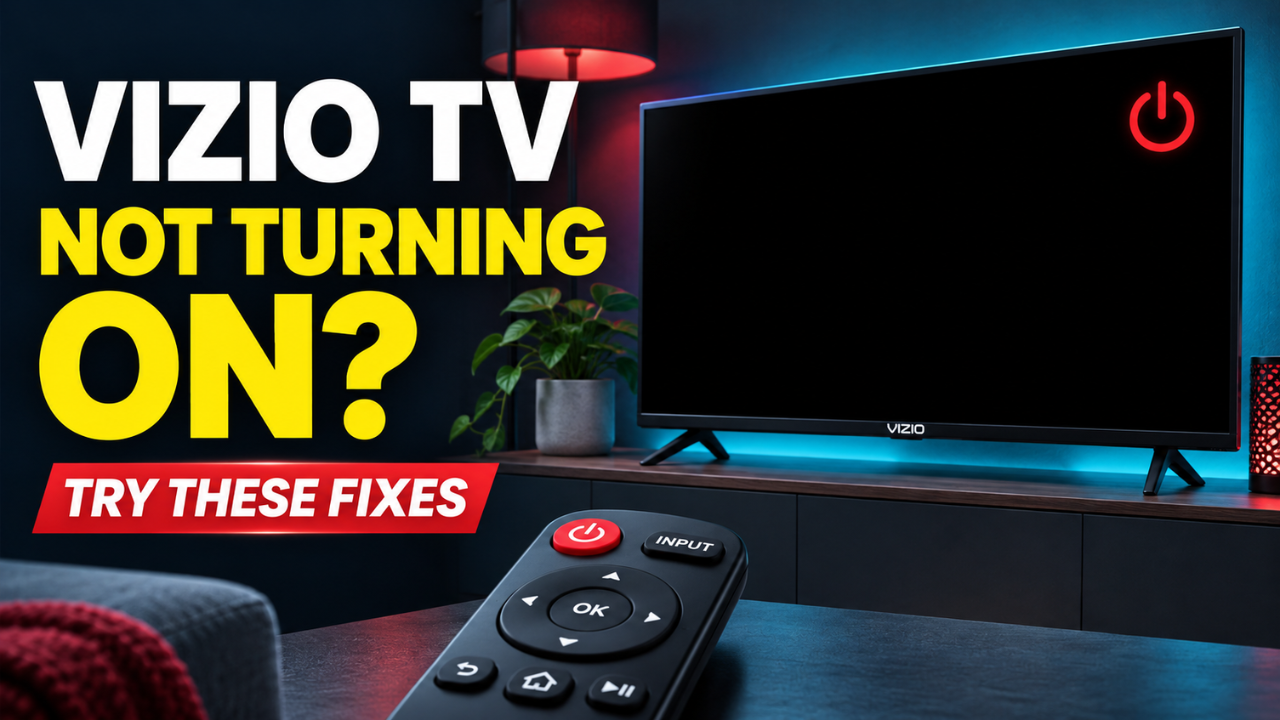
Vizio TV Not Turning On? Try These Fixes First
You press Power, wait a few seconds, and press it again. Nothing. Before long, you’re wondering whether your perfectly good TV has just become an expensive black rectangle.
A Vizio TV not turning on doesn’t automatically mean something inside has failed. Start with the outlet, try the button on the TV itself, and give the set a proper restart. Those checks help narrow down the problem before you spend anything.
The useful distinction is whether the TV has no power or has power but no picture. They can look identical from the sofa. Up close, the clues are different.
Table of Contents
- Start with the light, sound, and screen
- Check the outlet before blaming the TV
- Give the remote a break
- Unplug the TV and restart it properly
- Disconnect HDMI and USB devices
- Treat a black screen as a separate clue
- Check software and settings once it starts
- Know when to ask for a repair
Start with the light, sound, and screen
Walk over to the TV and press its power button once. Watch for a light, a brief logo, a screen glow, or sound from the TV’s speakers.
Don’t judge everything by the indicator. On some Vizio models, the power light comes on briefly and then goes out during normal operation. A fading light alone doesn’t prove the power supply has failed, as the front-panel instructions in Vizio’s manual make clear.
If you see the logo repeatedly, note that too. The set is attempting to start. That’s a different symptom from a television that never reacts at all, and it’s useful information if you eventually need support.
Check the outlet before blaming the TV
Start with the boring possibility: the TV isn’t getting power.
Unplug it and test the outlet with a working lamp. Check any wall switch controlling that socket. If you’re using a power strip or surge protector, temporarily connect the TV directly to a known-working wall outlet.
For example, someone might accidentally switch off the strip while vacuuming behind the cabinet. Everything looks connected, but the television has no electricity coming in.
While the TV is unplugged, check its power cord for damage. If the cord detaches from the TV, reseat that end securely as well. Some models have a fixed cable, so don’t pull at it expecting it to come out. Vizio includes both the outlet test and cable check in its troubleshooting guidance.
Stop using a frayed cord or an outlet showing heat damage. Those need attention before you continue testing.
Give the remote a break
The TV’s physical power button is a useful shortcut because it takes the remote out of the equation. Its location varies, so check underneath the frame or consult your model’s manual.
Press it briefly. Avoid holding unfamiliar buttons down while the TV is plugged in; longer presses can trigger other functions on certain models.
If the TV starts, turn your attention to the remote. Install fresh batteries, check their orientation, and move anything blocking the sensor. A soundbar pushed slightly forward can be enough to obstruct the signal.
Look for a stuck Power button, too. Remove the batteries and gently press and release the buttons before reinstalling them. These are among the checks covered by Vizio’s remote troubleshooting guidance.
I’d make these checks before ordering a replacement remote. They cost nothing.
Unplug the TV and restart it properly
Turning a television off with its remote usually leaves it in standby. Unplugging it gives you a more complete restart, which may clear a temporary software or control problem.
Use this sequence:
- Unplug the TV from the electrical outlet.
- Leave it disconnected for about a minute.
- While it’s unplugged, press and hold its physical Power button for three to five seconds, if available.
- Release the button, reconnect power, and try turning it on with one brief press.
The short button hold while unplugged follows the restart approach in Vizio’s support guidance. Waiting a minute gives you an easy interval to follow without rushing.
Allow the TV time to respond before pressing Power again. Repeated presses make it harder to tell what it’s doing.
This restart preserves your settings. A factory reset erases them, so save that for later. Also, if the screen explicitly says an update is installing, let it finish before disconnecting power.
Disconnect HDMI and USB devices
If restarting doesn’t help, test the television with only its power cord connected.
With the TV unplugged, disconnect HDMI cables and USB accessories, including streaming sticks, consoles, and soundbars. Then reconnect power and try the TV’s own button again.
Why bother? HDMI can carry control commands as well as video. Its CEC feature allows compatible devices to coordinate functions such as power and input switching. That makes connected equipment worth checking when the TV starts and immediately switches off.
If the TV now stays on, reconnect devices individually, switching equipment off before changing connections. Test after each addition.
When the problem returns after connecting one device, investigate that device, its cable, and its CEC settings. You’ve found a useful lead, although it doesn’t establish which item is faulty.
Treat a black screen as a separate clue
Hearing sound from the TV’s own speakers means it’s receiving power. Now you need to find out why there’s no visible picture.
Press Menu or Home. If the menu appears, the screen can display an image, and the selected input or connected device deserves attention first. Vizio recommends checking connections and changing inputs when power is present but the picture is missing.
Imagine the TV is set to HDMI 2 while your streaming box is connected to HDMI 1. Or the cable box has gone to sleep. Either situation can leave you staring at a dark screen even though the television is working.
Select the correct input, make sure the source device is awake, and try another HDMI cable or port if available.
If there’s sound but no menu or picture on any input after a restart, arrange further diagnosis. A display fault is possible, but this symptom alone doesn’t tell you which internal component needs replacing.
Check software and settings once it starts
A TV that comes back after unplugging deserves a little follow-up, especially if you’ve already repeated that ritual several evenings in a row.
Once it runs reliably enough to use the menus, check for software updates. On some Vizio models, the option sits under Menu > Admin & Privacy > Check for Updates. Other models use different labels or place it under System. Follow the instructions for your set and leave power connected throughout installation. The V-Series manual documents the Admin & Privacy route.
If the TV turns off after running for a predictable period, review Sleep Timer and Auto Power Off. Those settings can explain scheduled shutdowns, although they don’t explain a set that never responds to Power.
A factory reset is a later option for persistent software trouble when you can access the menus. It removes saved preferences, network details, and account information, so have your login details ready. Vizio’s reset instructions explain what gets removed. It won’t repair damaged hardware.
If the screen never becomes usable, get model-specific reset advice from support. Button combinations vary, and guessing adds confusion.
Know when to ask for a repair
After checking a working outlet, the cable, the physical button, a restart, and disconnected accessories, you’ve covered the sensible external checks.
If nothing changes, collect the model number, serial number, purchase details, and a clear description of the symptoms. Mention whether the light flashes, the logo appears, sound plays, or the TV immediately shuts down. A short video can help show an intermittent problem.
Check warranty coverage before paying for repairs. For an older set, compare a written repair estimate with replacement cost. I wouldn’t buy a power board based solely on a blinking light.
Leave the back cover in place. Vizio’s safety instructions warn that opening the television can expose you to dangerous voltages. If you notice smoke or a burning smell, stop testing, disconnect power if safe, and arrange service.
The best approach to a Vizio TV not turning on is patient elimination. Check what you can see and safely test, change one thing at a time, and follow the clues. Sometimes the answer is a loose connection. When it isn’t, you’ll have useful evidence for the person diagnosing it.