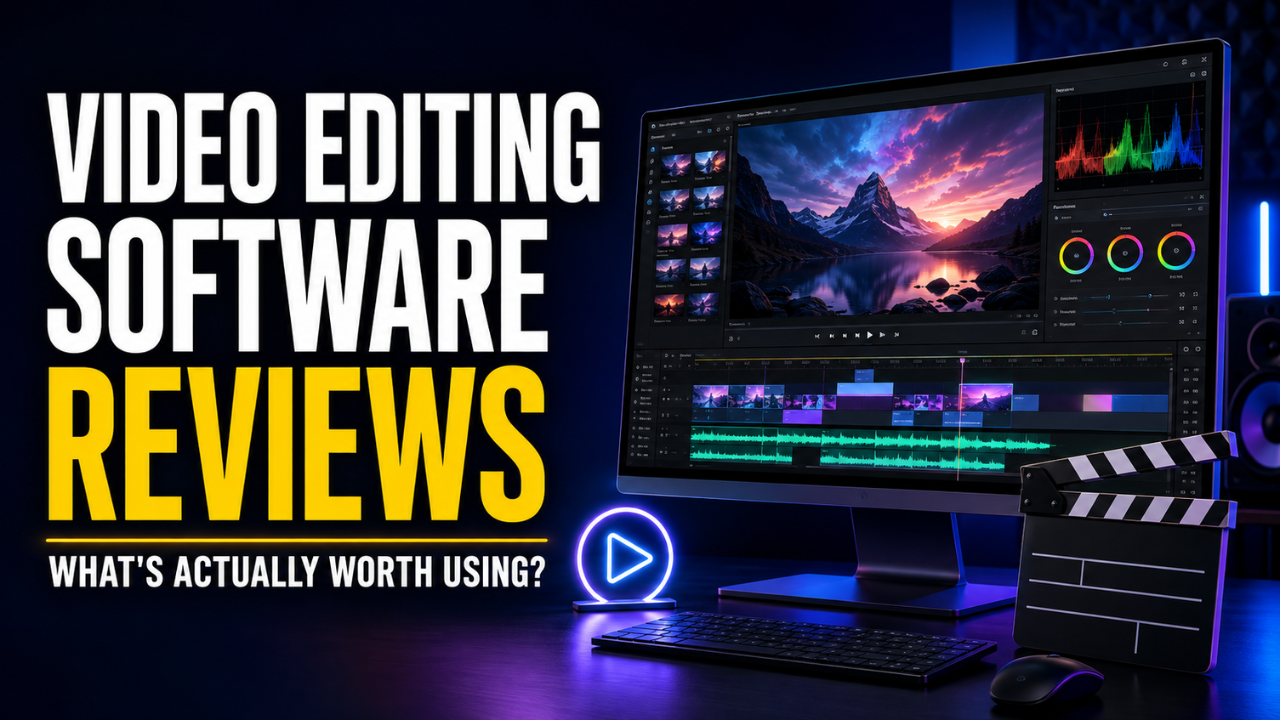
Video Editing Software Reviews: What’s Actually Worth Using?
Choosing a video editor sounds simple until every product claims to be fast, powerful, and beginner-friendly. Those words don’t tell you what happens when you’re cutting an interview at midnight, fixing noisy audio, or exporting a vertical clip before a client calls. The right editor makes that work manageable. The wrong one turns basic changes into a hunt through menus.
These video editing software reviews focus on real projects. A wedding filmmaker needs different tools from a shop owner making weekly social posts. There isn’t one winner for everyone, but there is usually a sensible winner for you.
Table of Contents
- What Makes a Video Editor Work Well Every Day?
- Adobe Premiere: Flexible but Demanding
- DaVinci Resolve: The Best Free Route to Serious Editing
- Final Cut Pro: Fast, Smooth, and Built for Mac
- PowerDirector: A Comfortable Middle Ground
- CapCut Desktop: Excellent for Fast Social Content
- How to Choose Without Overthinking It
- Try a Real Project Before You Pay
- The Final Takeaway
What Makes a Video Editor Work Well Every Day?
A long feature list can hide an awkward editing experience. What matters first is the timeline: Can you trim precisely, move clips safely, and find media quickly? Next comes playback. If the preview stutters whenever you adjust color, brilliant creative tools still become frustrating.
Hardware matters too. Software that flies on a new workstation may struggle on an older laptop. Proxy editing—using lighter copies of large files—can transform work with 4K footage. Export speed is useful, but reliability matters more. Waiting 25 minutes is annoying; discovering at minute 24 that the export failed is worse.
Now consider workflow fit. A café owner making three promotional clips each week may value automatic captions more than cinema-grade color controls. A documentary editor needs deep organization, dependable audio tools, and a responsive timeline. Good software isn’t the program with the most buttons. It’s the one whose strengths match your work.
Adobe Premiere: Flexible but Demanding
Adobe Premiere remains a strong professional all-rounder. It handles detailed editing, titles, effects, audio mixing, and varied delivery needs. Its biggest advantage is flexibility. Editors can customize workspaces, exchange projects with other creative applications, and collaborate through Adobe’s wider ecosystem.
Its traditional track-based timeline works well for agencies where projects pass between editors. It’s also easy to find experienced freelancers, templates, plug-ins, and training.
Still, Premiere asks for commitment. Its interface can feel crowded, and performance depends on your computer, media format, project setup, and storage. The subscription deserves thought as well. For someone earning from editing, the recurring cost may be reasonable. For a hobbyist making four family videos a year, it’s harder to justify.
Premiere suits editors who want a widely used professional environment and have enough work to justify its complexity and ongoing cost.
DaVinci Resolve: The Best Free Route to Serious Editing
DaVinci Resolve 21 combines editing, color correction, visual effects, motion graphics, and audio post-production in one application. Its free version supports Ultra HD work up to 60 frames per second for many common 8-bit formats, while Resolve Studio adds higher-end formats, effects, acceleration, and specialist tools.
Resolve’s free edition is unusually capable. A beginner can learn ordinary cuts, then move into professional color and audio without changing software. Picture a student starting with travel videos and taking on paid music videos a year later. Resolve leaves room to grow.
That depth is also its weakness. Separate pages handle media, cutting, effects, color, audio, and delivery. The logic becomes clear with practice, but the first launch can feel like walking into a television control room. Fusion’s node-based effects are powerful, though not instantly friendly.
Resolve prefers capable hardware, especially for demanding formats and effects. On a modest machine, proxies may become routine. Even so, it’s my first suggestion for a patient learner who wants professional depth without an immediate monthly bill.
Final Cut Pro: Fast, Smooth, and Built for Mac
Final Cut Pro is available only within Apple’s world, and that narrow focus is part of its appeal. It’s optimized for Mac hardware, especially Apple silicon, and it often feels quick when skimming footage, arranging clips, and exporting finished work. Apple offers it through Creator Studio and still provides a one-time-purchase option for the Mac app.
Its Magnetic Timeline is the dividing line. Instead of placing every clip on fixed tracks, Final Cut connects material in a fluid structure. Some editors love building rough cuts without leaving gaps or knocking clips out of sync. Others initially feel as if the program is making decisions for them.
Once that mental shift clicks, Final Cut is excellent for solo creators, event filmmakers, and YouTubers. Its libraries, events, keywords, and favorites make media organization efficient. You also get serious color, audio, caption, and format controls without making every job feel heavy.
Platform lock-in is the obvious limitation. If your team uses Windows or clients expect Premiere projects, Final Cut creates friction. For a Mac-based editor working mostly alone, its speed and one-time purchase option are attractive.
PowerDirector: A Comfortable Middle Ground
PowerDirector 365 sits between simple consumer editors and dense professional suites. It provides timeline editing, title controls, effects, audio tools, templates, and access to a large stock-asset collection through its subscription plans. The interface is generally easier to approach than Premiere or Resolve, yet it gives users more control than a basic mobile-style editor.
That balance works for small businesses, educators, and casual YouTubers. Suppose you need to turn a webinar into a polished lesson with titles, cleaner sound, and visual cutaways. PowerDirector can get you there without making you study a professional post-production system first.
There are trade-offs. Its many effects and automated tools can make the interface busy, and new editors may overdecorate videos. Templates save time, but heavy reliance on them makes different projects look similar. Experienced editors may prefer deeper media management, color, and collaboration elsewhere.
PowerDirector makes sense when accessibility matters but you still want a proper desktop timeline. It’s built for finishing good-looking videos consistently.
CapCut Desktop: Excellent for Fast Social Content
CapCut Desktop is built around the pace of modern online content. Auto captions, background removal, transcript-based editing, effects, filters, reframing, voice tools, and long-video-to-short-video features can remove a lot of repetitive work. Its desktop version is more capable than the mobile-first reputation may suggest.
For short-form creators, that convenience is hard to ignore. Imagine cutting pauses from a six-minute talking-head clip, adding captions, and producing vertical versions. CapCut makes the process direct, even for someone who doesn’t consider themselves an editor.
Convenience can shape the look, though. Trend-led effects, preset animations, and familiar captions may make videos feel interchangeable. Some features and assets require payment, so “free” doesn’t mean every tool is unlimited. Teams producing documentaries or complex commercial work will probably outgrow it.
CapCut is best when publishing speed matters more than deep control. For reels, shorts, simple ads, and educational clips, it may be the most efficient option here.
How to Choose Without Overthinking It
Start with the kind of video you’ll make most often, not the impressive project you might attempt someday. If you’re building a professional career across different clients and teams, Premiere is a safe, flexible choice. Resolve is better when you want serious color, sound, and finishing tools while keeping initial software costs low. Mac users who value speed and prefer a one-time purchase should look closely at Final Cut Pro.
PowerDirector is friendlier for regular business or education content, while CapCut wins when short-form speed is the priority. If you want a completely free, open-source editor and can accept a less polished experience, Shotcut is also worth testing on Windows, Mac, or Linux.
Your computer may make the final decision. Download a trial or free edition and place real footage on the timeline. Add captions, adjust color, layer music, and export at your usual resolution. A smooth editor with fewer headline features will serve you better than a prestigious one that freezes on your machine.
Try a Real Project Before You Pay
Don’t test software with one 20-second clip. Use a complete mini project: several files, music, dialogue, a title, basic color work, and a vertical export. That reveals friction marketing pages never show.
Notice how many clicks routine actions require. Can you replace a clip without losing its timing? Is it clear where exports go? Can you return a week later and understand your organization? Tiny details decide whether editing stays enjoyable.
Check the true cost too. A cheap plan becomes expensive over several years, while a one-time license may exclude premium services. Plug-ins, stock media, storage, and hardware can cost more than the editor. Buy for the workflow, not a discount banner.
The Final Takeaway
The best video editing software reviews shouldn’t crown one universal champion. Premiere offers broad professional flexibility. Resolve delivers exceptional depth for free and even more in its paid edition. Final Cut Pro is fast and focused for Mac users. PowerDirector makes desktop editing approachable, while CapCut handles social content with impressive speed.
Pick the editor that removes friction from the work you repeat every week. Then stay with it long enough to build muscle memory. Software matters, but comfortable decisions, clean organization, and a reliable workflow will improve your videos far more than constantly switching to the newest tool.