
Task Manager Mac Guide for Slow and Frozen Apps
You’ve closed a few windows, but your Mac still pauses every time you switch apps. Something is clearly keeping it busy. The trouble is figuring out what.
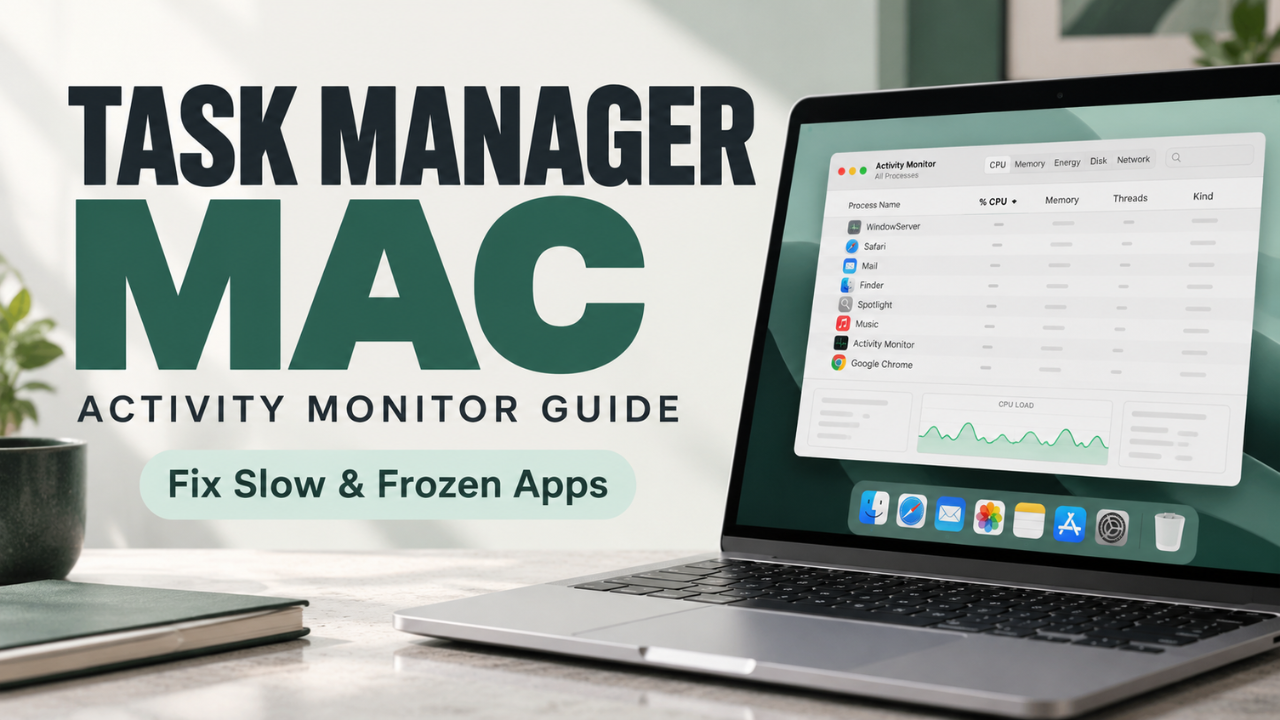
If you’re looking for Task Manager on a Mac, open Activity Monitor. This built-in utility lets you inspect running apps, check resource use, and stop a process when necessary. For an app that has simply frozen, there’s also the quicker Force Quit window.
Neither tool takes long to learn. A few useful checks can help you decide whether to close an app, reduce your workload, or restart the computer.
Table of Contents
- The Mac tool you are looking for
- Open it and make the process list useful
- Handle an app that has stopped responding
- Investigate a slowdown across the whole Mac
- Read memory pressure before judging RAM use
- Follow the clues from battery disk and network activity
- Get to the cause of repeat problems
- Decide when to restart and move on
The Mac tool you are looking for
Apple calls its system monitoring app Activity Monitor. It covers much of the everyday work people associate with Windows Task Manager, including checking processor demand and identifying memory-heavy apps.
The window contains entries called processes. Some are familiar applications, while others are services working behind the scenes. An app may rely on several processes, so the number of rows won’t match the number of windows on your screen.
That’s normal. A long list alone gives you no reason to start shutting things down.
Think of Activity Monitor as a place to gather evidence. It can show you that an app is busy, but you still need to consider what that app is doing. A demanding task and a stuck process can both produce high numbers.
Force Quit is useful when you need to get an unresponsive app off the screen. It provides a short route to that action without the performance details.
Open it and make the process list useful
Use Command + Space, enter Activity Monitor in Spotlight, and press Return. If you prefer navigating with the mouse, open Finder and select Go > Utilities. Activity Monitor lives in that folder.
Before studying the numbers, check View > All Processes. This removes the uncertainty of looking at a list restricted to one group of processes.
You can sort entries by clicking a column heading. Clicking again reverses the order. For troubleshooting, it usually helps to put the largest values first.
Searching is handy when you already have a suspect. Type an app’s name into the search field to narrow the results, then remove the search text when you finish. Otherwise, an active filter may hide the next thing you want to inspect.
You don’t have to understand every column. Start with the tab that matches the problem, and leave the rest until you need it.
Handle an app that has stopped responding
Say you’re annotating a PDF and the viewer stops reacting. You can still move the pointer and use other apps, so there’s no need to restart immediately.
First, try quitting the viewer with Command + Q. A normal quit allows the app to deal with open documents and any save prompts.
If that fails, press Option + Command + Esc. Choose the unresponsive app, then select Force Quit. The same window is available from Apple menu > Force Quit.
Activity Monitor offers another route. Highlight the relevant process, click the toolbar’s Stop button, and choose Quit or Force Quit. The normal Quit option allows a safer exit when possible. Force Quit stops the process immediately and can discard unsaved work.
Take care with background processes. Ending one can interfere with another application that depends on it. If you can’t identify an entry, investigate before stopping it.
Also remember that closing a window with its red button may leave the application open. To finish an app session completely, use its Quit command. If the unresponsive app is Finder, the Force Quit window offers Relaunch instead.
Investigate a slowdown across the whole Mac
When several apps feel sluggish at once, open Activity Monitor’s CPU tab. CPU use tells you how much processing work is happening.
Sort by % CPU and observe the leading entries across several updates. You’re looking for a pattern that fits the slowdown.
For example, converting a folder of audio recordings can keep an app busy until the conversion ends. That would explain a temporary spike. An app that remains unusually active after you’ve finished using it raises a different question.
Look at the summary below the process list, too. User covers activity from your apps and their processes. System represents macOS processes, while Idle shows unused processor capacity.
There’s no single percentage that proves an app is faulty in every situation. I’d pay more attention to activity that stays high during light use than to a brief jump while opening a large file.
If CPU activity doesn’t explain the hesitation, move to Memory. Processor demand is only one possible source of a slow Mac.
Read memory pressure before judging RAM use
RAM holds information your Mac needs while working. As you open more applications and documents, that workload places different demands on memory.
The useful starting point is the Memory Pressure graph in the Memory tab. Green indicates efficient memory use. Yellow suggests the workload may need more RAM, and red indicates a greater shortage for the current demands.
Now consider a less obvious case: Memory Used looks high, but the graph stays green and your apps respond normally. That figure alone doesn’t call for action. macOS puts spare memory to work caching files, which can help when you return to them.
When pressure stays elevated and the Mac struggles, sort the Memory column. Look for applications you can close after saving your work. Leaving yesterday’s editing project open while starting today’s work may be an avoidable burden.
You’ll also see Swap Used, which reports startup disk space used for moving data to and from RAM. Treat it as part of the picture. A swap figure on its own says less than persistent memory pressure combined with noticeable delays.
After closing an unused app, check whether everyday actions actually feel quicker. That’s the result that matters.
Follow the clues from battery disk and network activity
Sometimes the complaint is more specific than “everything is slow.” Perhaps your MacBook loses charge quickly during a quiet afternoon of work.
Open Energy and inspect Energy Impact. This is a relative measure of current energy demand, so a larger value doesn’t directly translate into a percentage of battery lost. Use it to identify activity worth investigating.
For storage-related questions, the Disk tab reports reads and writes. A file transfer can explain busy disk activity. To see remaining storage capacity, go to System Settings > General > Storage instead.
The Network tab helps you examine traffic. A sync app uploading a recording could explain data transfers even when your browser is closed. Watch the current transfer rate as well as the totals; they answer different questions.
These views help connect activity with a likely cause. They don’t, by themselves, establish that an unfamiliar connection is malicious or that your internet service is delivering its promised speed.
Get to the cause of repeat problems
A freeze that happens once may be hard to reproduce. A freeze that happens whenever you open the same file gives you a starting point.
Keep a brief note of the app, the action, and what Activity Monitor showed. Then change one condition and try again. Perhaps the trouble only appears with a particular document, or while another demanding program is running.
Avoid changing several settings together. Even if performance improves, you won’t know which change helped.
If the trouble starts soon after login, review System Settings > General > Login Items & Extensions. Under Open at Login, check which apps launch automatically. Remove an unnecessary item from that list if you’re testing whether it contributes to startup trouble. The labels can differ between macOS versions.
You can still open that app manually afterward. Removing its login entry doesn’t uninstall it.
For an application that repeatedly misbehaves, check for updates and consult its support guidance. Force Quit is useful for recovering control, but repeated freezes deserve attention beyond closing the same window again.
Decide when to restart and move on
If an app refuses to close, a normal restart is a reasonable next step. Save work in responsive applications, then choose Apple menu > Restart.
Afterward, reopen what you need and see whether the problem returns. If it does, check available storage as well as Activity Monitor. Limited free space on the startup disk can also affect performance.
The aim is to get comfortable making a small, informed decision. Use Force Quit when one application stops responding. Use Activity Monitor when you need to understand what’s consuming resources. Once the Mac behaves normally again, close the monitoring window and carry on. You’ve got work to do; watching numbers shouldn’t become another job.