AI Document Processing Tool: How It Works and How to Choose
A supplier emails an invoice. Someone opens it, copies the details into a spreadsheet, checks the total, then enters the same information into accounting software. Tomorrow, they do it again.
There’s nothing complicated about that work. It just takes time, especially when every supplier uses a different layout.
An AI document processing tool can handle parts of this routine by turning documents into organized information your team can use. The value depends on how well it reads your files, handles mistakes, and fits into what happens next. A quick upload means little if someone still has to repair every result.
Table of Contents
- What an AI Document Processing Tool Actually Does
- From a Messy PDF to Usable Information
- Where It Helps in Everyday Work
- Why Accuracy Needs More Than a Percentage
- Choosing a Tool That Fits Your Work
- Check What Happens to Your Documents
- Run a Small Test Before Moving Everything
- Measure the Work You Actually Save
What an AI Document Processing Tool Actually Does
An AI document processing tool extracts information from files and organizes it into useful fields. Depending on its capabilities, it may also identify document types, read tables, or separate several documents bundled into one PDF.
Think about an invoice containing a supplier name, invoice number, payment deadline, and total. You need those details as separate entries, ready for a spreadsheet or another business system.
That’s different from simply making a document searchable. Optical character recognition, usually called OCR, reads text from images and scanned pages. Document processing builds on that text to identify the information you actually need. Some OCR services also detect layout and handwriting, although support varies.
Reading a number is one job. Recognizing whether it represents a subtotal, tax amount, or balance due is another.
From a Messy PDF to Usable Information
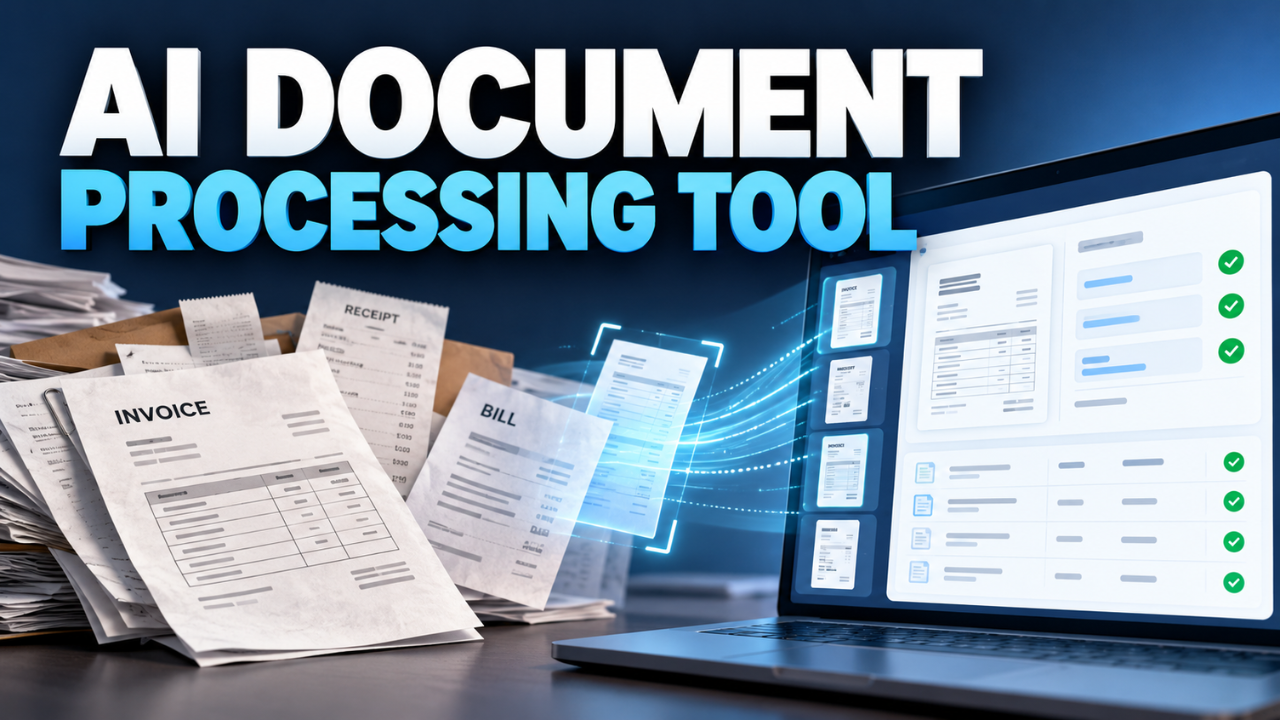
The process usually begins when a document enters the system through an upload, shared folder, email connection, or another supported channel. The tool identifies the document type and extracts the required details. A workflow can then apply checks before passing those details to another system. AWS describes classification, extraction, validation, and downstream processing as core stages of intelligent document processing.
Imagine a delivery company receiving a scanned invoice from one of its suppliers. The software extracts the invoice number, individual charges, and final amount. A configured rule compares the charges with the total. If something doesn’t match, the file goes to a person for review.
Those checks require setup. Don’t assume every product automatically knows your approval rules or connects to your accounting system.
The final destination matters, too. A spreadsheet export might suit a small team. A larger operation may need approved records sent directly into its purchasing software. Decide where the information should go before choosing how to extract it.
Where It Helps in Everyday Work
Repetitive paperwork is usually the best place to look for value.
A wholesaler might process purchase orders from dozens of customers. Each document contains familiar information, but the customer’s reference number appears somewhere different. Extracting that reference alongside product codes and quantities could reduce repeated typing.
An agency might need to record supplier invoices against the correct client project. A property manager could collect renewal dates from agreements, with someone checking each date against the original wording.
These are different tasks, even though they all involve documents. A tool that handles clean invoices well may struggle with lengthy agreements or handwritten forms.
Start with a specific frustration. “We spend every Friday entering delivery details” gives you something measurable to improve. “We need to automate our documents” leaves too much open.
Why Accuracy Needs More Than a Percentage
A claim of high accuracy sounds reassuring. It doesn’t tell you which mistakes occur or how much they matter.
An incorrect punctuation mark in a supplier’s address may be easy to fix. A misplaced decimal in the amount due needs much closer attention. Judge results by the fields your business relies on.
Some tools return confidence scores for extracted information. Microsoft’s documentation explains that these scores can help determine which predictions to accept automatically and which to flag for human review. Treat confidence as a review signal, then check how reliably it works on your documents.
Keep the source page beside the extracted result during review. Someone checking a questionable number shouldn’t have to search through a long PDF to find it.
Also watch how missing information appears. An empty purchase order field should remain visibly missing. A plausible-looking replacement could slip through a quick check and create problems later.
Choosing a Tool That Fits Your Work
Begin by checking how the tool handles your documents.
Collect examples of the files you receive regularly. Include scanned PDFs, digital PDFs, photographs, or handwritten pages if they’re part of the job. Check support for the languages and layouts you actually use.
Then look closely at the output. Does a table keep the correct quantity beside each product? Does the system preserve reference numbers that begin with zero? Can it distinguish an invoice date from a payment deadline?
Dates deserve particular care. A value such as 04/05/2026 can mean different things depending on the format. Agree on how dates should be interpreted and stored before importing them into another system.
Usability matters just as much as extraction. Ask the person who handles paperwork to try correcting a result. If that takes several screens and repeated clicks, those seconds will accumulate.
Finally, check what setup requires. Some products offer a ready-made interface; others provide developer services that need an application built around them. Include that work in your decision.
Check What Happens to Your Documents
Documents often contain information you wouldn’t leave in a public folder: customer addresses, employee details, pricing, or contract terms.
Before uploading real files, check the provider’s current terms for storage, retention, access, and use of uploaded content. Find out how deletion works and whether you can control who sees particular documents.
Within your team, access should follow the task. Someone checking delivery quantities may have no reason to view payroll records.
Keep a record of corrections and approvals where the work requires it. If an amount changes after extraction, you should be able to see who changed it and why.
For an early trial, use redacted samples where practical. That lets you explore the interface and basic results before introducing sensitive information.
Run a Small Test Before Moving Everything
Choose one document type and one clear goal. Extracting invoice numbers, dates, and totals is a manageable starting point.
Build a test set that reflects ordinary work. Include clear files, awkward scans, unfamiliar layouts, and incomplete documents. A demonstration using five tidy PDFs won’t reveal much about the paperwork arriving in your inbox.
Prepare a checked reference for each sample so you know what the correct result should be. If you use documents to configure or train the tool, keep separate examples for evaluation. Otherwise, you may get an overly generous impression of its performance.
Track which fields are correct, which need editing, and how long review takes. Watch for failures that disappear quietly, such as a page that never gets processed.
Give exceptions an owner. Someone needs to know when a file gets stuck and what to do next. A useful pilot tests the whole task, including recovery when something goes wrong.
Measure the Work You Actually Save
A document processed in seconds can still create several minutes of checking. Measure the time from receiving the file to having a usable, approved record.
Suppose your team handles 300 documents a month. If typing takes four minutes per document and the new workflow needs one minute of review, the potential saving is 15 hours monthly. That’s an illustration, not a promised result.
Compare that saving with subscription charges, processing fees, setup, integration, and ongoing corrections. Check what counts as a billable page or document, including repeat attempts and unusually large files.
There’s also a practical question: what will your team do with the time recovered? Clearing overdue work or replying to customers sooner may be more useful than simply processing a larger pile of paperwork.
Choose the tool that makes a familiar task easier to finish accurately. Start small, keep review where it matters, and expand once the results justify it. The best outcome is straightforward: information reaches the right place, and your team spends less of the day moving it there.