
Apple Watch Not Charging? What to Check First
You set your Apple Watch on its stand before bed. In the morning, the screen is black, and you’ve got ten minutes before you need to leave. You lift the watch, put it back, and wait for a sign that it’s doing something. Still black.
I’d start with the magnetic cable that came with the watch and a wall outlet you know works. From there, pay attention to what the screen does. A red bolt, a charging symbol that keeps disappearing, and a battery that stalls at 80% each give you a clue about what to check next.
Table of Contents
- Give a drained battery time to wake up
- Check how the watch sits on the charger
- Swap one part of the charging setup at a time
- Restart a watch that still won’t respond
- Figure out why charging is slow
- Check why the battery stops near 80%
- Know when to get the watch checked
Give a drained battery time to wake up
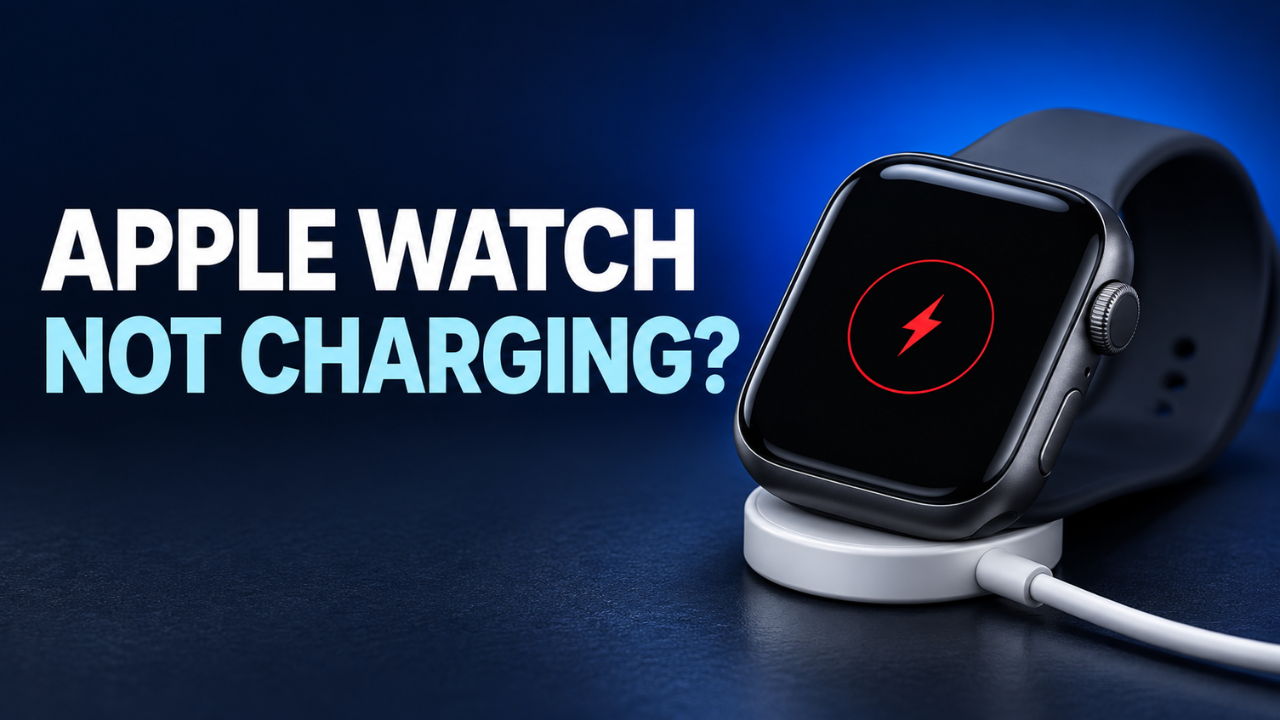
A red lightning bolt on its own means the battery is too low for the Apple Watch to turn on. When you set the watch on its charger, look for a ring around that red bolt. The ring tells you the watch has detected the charger.
If the display stays blank or shows a picture of a charging cable, leave the watch on a powered charger for up to 30 minutes. A watch that’s been sitting dead in a drawer all week can take a while to show any sign of life. Leave it seated during the test so it gets a continuous stretch of power.
Once the watch wakes up, note the battery percentage and check it again a few minutes later. A steady rise is what you want to see. If the charging symbol flickers on and off when the watch shifts, take a closer look at how it’s sitting.
Check how the watch sits on the charger
Take the magnetic puck out of the stand, if you can, and lay it flat on a table with its shallow, curved side facing up. Wipe the back of the watch and the face of the puck with a soft, lint-free cloth. If the charger is new, peel any protective film off both sides. Then set the watch down so the magnet pulls it into place. A charging symbol should appear once charging starts, and you may hear a chime if Silent Mode is off.
A stiff band can keep the watch propped up just enough to break the connection. Take the band off for one test if it’s pushing against the table or stand. This is worth trying with an Apple Watch Ultra on a MagSafe Duo Charger or Apple Watch Magnetic Charging Dock, where a flat position can help the magnets line up. A bulky case that overhangs the back is worth removing for the same test.
If the watch came straight off your wrist after a run, dry the back before setting it down. Make sure the charging gear is dry, too. Set aside any cable with a split jacket or a damaged connector and use an intact one for your tests.
Swap one part of the charging setup at a time
Push the USB connector all the way into the power adapter, then plug the adapter directly into a working wall outlet. If you normally charge from a desk hub or a power strip, that quick change gives you a simpler setup to test. Unsure about the outlet? Plug in a lamp and see if it lights up.
Next, try a compatible adapter you know works, using the same cable. If the watch still won’t charge, swap in another Apple Watch magnetic charging cable. Keep the working adapter and outlet in place. Changing one piece at a time makes it easier to tell which one caused the trouble.
Say the watch spent the night on a three-in-one stand and woke up at 6%. If it charges steadily when you move it to its original puck, try reseating it on the stand and watching the icon. If the symbol vanishes as soon as you let go, you’ve found an unreliable connection at the stand. Check whether the band or case is holding the watch away from the puck.
Restart a watch that still won’t respond
If the screen is responsive, remove your Apple Watch from the charger and press and hold the side button. Tap the power icon if it appears, then drag the Power Off slider. Once the watch shuts down, hold the side button again until you see the Apple logo. Put the watch back on the charger and check whether the battery percentage starts climbing.
If the watch is frozen and you’ve already given it time on a working charger, try a force restart. Hold the Digital Crown and the flat side button together for at least 10 seconds. Release them when you see the Apple logo. If an update progress wheel appears, keep your Apple Watch connected to the charger and wait for the update to complete before attempting a restart.
Figure out why charging is slow
If you get out of the shower and the battery has barely moved, look at what else is plugged in. A multiport charger can split its power when it’s also charging a laptop or phone. A USB hub or a car port can be slow, too. Try the watch on its own wall adapter and compare how much charge it gains over the same stretch of time.
Apple Watch Series 7 and later, Apple Watch SE 3, and the Ultra line support fast charging. For that speed, use Apple’s USB-C Magnetic Fast Charging Cable with a compatible USB-C Power Delivery adapter. An older compatible cable may still charge a newer watch at standard speed. On watchOS 26 or later, a Slow Charger message under Settings → Battery is another clue that your setup could charge faster.
Heat can slow charging or stop it altogether. Think of a puck on a windowsill that gets afternoon sun. If you see a red thermometer on the watch, take it off the charger, move it somewhere cooler, and let it cool down before trying again. An open tabletop at room temperature is a good spot for the next test.
Check why the battery stops near 80%
Seeing the same 79% two nights in a row can make you wonder if the charger is cutting out. With Optimized Battery Charging, the watch may hold around 75% to 80% during a long charging session and finish later, closer to when you usually take it off. Supported models can also use Optimized Charge Limit, which picks a charging target based on your habits. An open ring on the charging screen is a sign that the limit is active.
Say you’re leaving early for a day trip and want a full battery now. Leave the watch on the puck, tap the screen, then tap the ring around the charging icon. Choose Charge to Full Now if it appears. If the percentage climbs past its usual stopping point, you’ve got a good clue that a battery setting was behind the pause. You can see which options your watch offers under Settings → Battery → Battery Health.
Know when to get the watch checked
If a setup you’ve verified still won’t charge the watch, contact Apple Support or an Apple Authorized Service Provider. Mention whether the screen stayed dark after 30 minutes, whether a force restart did anything, and which cable and adapter you tested. If you can see damage to the screen or case, stop using the watch and arrange an inspection.
If it reaches 100% on the charger but dies by lunchtime, open Settings → Battery → Battery Health and look for Maximum Capacity. This tells you how much charge the battery can hold compared with when it was new. A watch with a worn battery can show a full charge and still run out earlier than it used to. If you see Battery Needs Service, get the battery checked.
Once your watch is charging again, glance at the screen when you set it down for the night. A quick look for the bolt gives you a chance to reseat the watch while you’re still there. It’s an easy habit to keep if you rely on that battery for your alarm or your morning run.