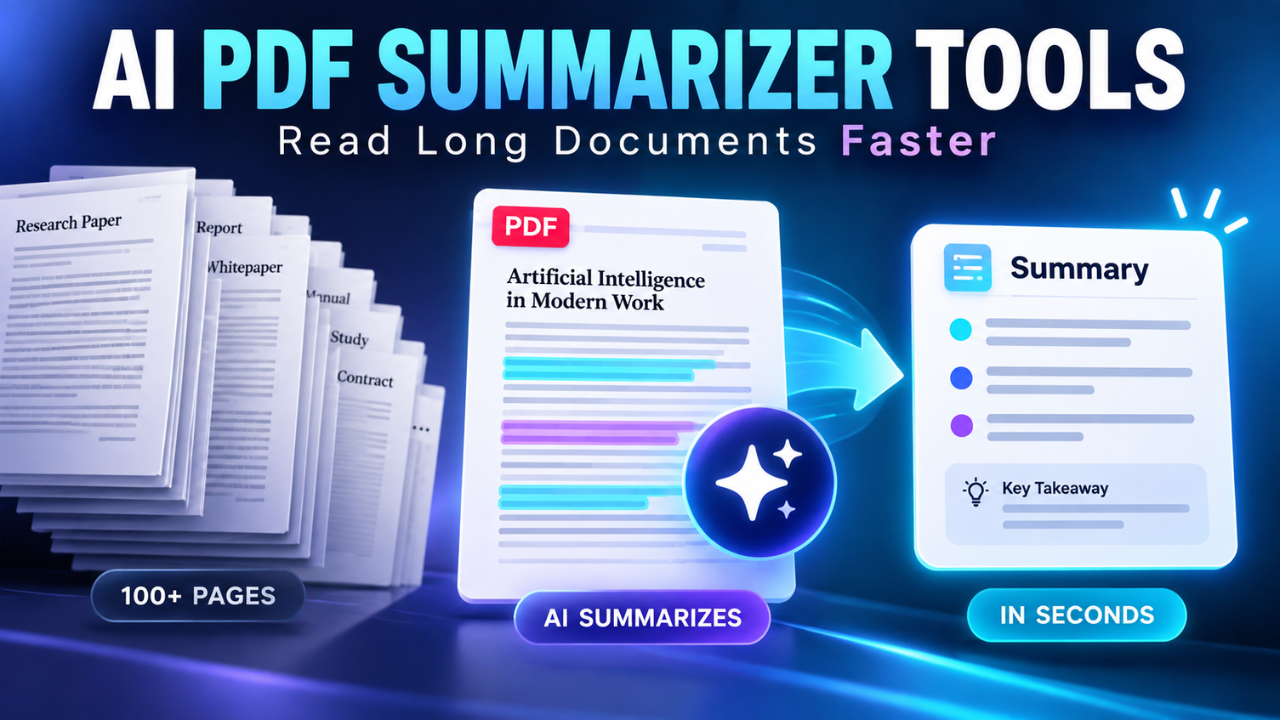
AI PDF Summarizer Tools: Read Long Documents Faster
A 70-page PDF can hide the one answer you need inside a paragraph on page 46. Reading every line isn’t always realistic when you’re comparing reports, checking a contract, studying for an exam, or preparing for a meeting. AI PDF summarizer tools make that first pass faster by turning dense documents into shorter explanations.
The useful part isn’t simply getting a smaller file. A good tool helps you see the document’s structure, identify its main argument, find important details, and ask questions without searching page by page. A summary is a starting point, not a replacement for the original PDF, so keep the source nearby for anything important.
Table of Contents
- What AI PDF Summarizer Tools Actually Do
- Why People Use Them for Work and Study
- Features That Matter More Than a Fancy Demo
- How to Get Better Results from a PDF Summarizer
- Where These Tools Still Fall Short
- Privacy and Accuracy: What to Check First
- A Simple Workflow for Real-World Use
- Final Takeaway
What AI PDF Summarizer Tools Actually Do
At a basic level, these tools read the text inside a PDF and produce a shorter version. They may describe the central idea, list the main points, explain the conclusion, or organize the document by section. Some can also answer questions about the file, such as “What were the three recommendations?” or “Which risks did the report mention?”
That sounds simple, but PDFs are often messy. A document may contain headings, tables, footnotes, scanned pages, charts, sidebars, and several columns. The better summarizer tools try to understand how those parts fit together instead of treating the file like one giant block of text.
You can usually choose a quick overview, a section-by-section summary, or bullet points for action items and decisions.
Why People Use Them for Work and Study
The biggest benefit is time. Imagine receiving a 120-page industry report on Friday afternoon and needing to discuss it on Monday. You could spend hours reading it from beginning to end, or you could start with a summary, mark the sections that deserve attention, and then read those sections properly. That doesn’t remove the work, but it puts your attention in the right place sooner.
Students use summarizers for a similar reason. A long chapter or research paper can feel difficult before its structure is clear. A short overview reveals the topic, argument, and terms that need more explanation.
They’re also useful for comparison. If you have three proposals or policy documents, summarize each one using the same questions: What problem does it address? What does it recommend? What are the costs, limits, or risks? A consistent approach makes differences easier to notice.
Let’s be honest: a clear first summary also reduces the friction of starting. When a document looks intimidating, it can make the file feel manageable enough to open and study.
Features That Matter More Than a Fancy Demo
Not every PDF summarizer is equally useful. The interface may look impressive, but the important details are usually less glamorous.
First, check whether the tool can handle the kind of PDF you actually work with. Text-based reports are usually easier to process than scanned documents. If your files are scans, the tool needs strong text recognition. Otherwise, it may return an incomplete or strangely empty summary.
Next, look for summary length controls. A two-sentence overview and a two-page briefing serve different purposes. It helps when you can choose a short, medium, or detailed result instead of receiving the same format every time.
Question answering is another valuable feature. A summary tells you what the system thinks matters most, while questions let you investigate your own priorities. You might ask, “What assumptions does the author make?” or “Which figures support this conclusion?”
Source references matter, too. When a tool points back to a page, heading, or quoted passage, you can verify an important claim quickly. Without that trail, you may spend almost as much time checking the summary as you would have spent reading the document.
Table and chart handling deserves attention. A PDF’s most important information may be a pricing table, timeline, financial result, or comparison chart. A tool that ignores visual structure can produce a smooth summary while missing the detail you needed.
How to Get Better Results from a PDF Summarizer
The quality of the result depends partly on the instruction you give. “Summarize this PDF” is fine for a quick overview, but it leaves many decisions open. A more specific request usually produces a more useful answer.
Tell the tool what you need the summary for. For example, you could ask for a plain-English overview for a new employee, a study guide with key terms, or a decision brief showing benefits, costs, and risks. The document stays the same, but the useful information changes depending on your goal.
Set a preferred length when it matters. You might request five short paragraphs, ten key points, or a one-page briefing. A limit keeps the response focused.
Ask for uncertainty to be marked clearly. If a page is blurry, a table is incomplete, or a conclusion is implied rather than stated, you want that limitation mentioned. A cautious answer is far more useful than a confident guess.
You can also work in stages. Start with a broad summary, ask about the sections related to your question, then request evidence, definitions, or next steps. This is usually better than asking for everything at once because you can guide the conversation.
A specific prompt works better. For a supplier agreement, ask: “Summarize the payment terms, renewal conditions, cancellation rules, and responsibilities of each party. Mention the page or section for every important point.” That tells the tool what to find and gives you a way to check the result.
Where These Tools Still Fall Short
The main weakness is that a fluent summary can still be wrong. A tool may misunderstand a sentence, overlook a qualification, confuse two numbers, or describe a recommendation as a fact. The wording can sound certain even when the source is complicated.
Context is another challenge. A sentence in a legal, medical, financial, or scientific document may depend on definitions introduced earlier. A short summary can remove those conditions and make the statement appear broader than it really is.
Tables and scanned pages can cause trouble as well. A missing minus sign, a misread column, or a poor scan may change the meaning of a result. If the document includes calculations, measurements, deadlines, or contractual duties, inspect the original page instead of trusting a summary alone.
There’s also the danger of reading only the summary. It feels efficient, but the author’s evidence, exceptions, and reasoning may be the most important parts. A summary can tell you what a document says; it may not show whether the argument is convincing.
For low-stakes tasks, these limitations are manageable. For high-stakes decisions, they’re a reason to use the tool as a navigation aid and verify every material detail.
Privacy and Accuracy: What to Check First
Before uploading a PDF, think about what it contains. A document might include customer details, internal financial information, private correspondence, unpublished research, or identification numbers. Check the tool’s handling options and your organization’s rules before sending anything sensitive.
Remove unnecessary personal information when possible. Keep a copy of the original and avoid uploading more pages than the task requires. If you’re reviewing one section of a large report, there may be no reason to share the entire file.
Accuracy checks should be deliberate. Compare names, numbers, dates, quoted statements, and conclusions against the source. Pay attention to words such as “may,” “must,” “unless,” “before,” and “after.” One qualifier can change the meaning of a paragraph.
If the tool supports page references, use them. If it doesn’t, ask it to repeat the exact passage that supports an answer. A summary becomes much more trustworthy when you can trace important claims back to the PDF.
A Simple Workflow for Real-World Use
Start by deciding what you need from the document. Your goal might be to understand the main argument, find a deadline, compare two options, or prepare questions for a meeting.
Ask for a short overview first. Read it carefully enough to understand the document’s shape. Then request a section-by-section summary or ask targeted questions about the parts that matter to you.
Next, verify important details in the original PDF. Open the cited page, inspect the table, and read the surrounding paragraph. If the information affects money, legal obligations, health, safety, or a major business decision, don’t skip this step.
Finally, turn the result into something useful: a short briefing, study notes, meeting preparation, or a decision checklist. The summarizer saves time at the beginning, but your judgment gives the information value.
Final Takeaway
AI PDF summarizer tools are most useful when they help you move through a document with purpose. They can make long files less intimidating, reveal structure quickly, and help you find the details worth reading closely. The best results come from specific questions, sensible privacy habits, and a quick check against the original source. Use the summary to get oriented, then let the PDF—and your own judgment—make the final call.