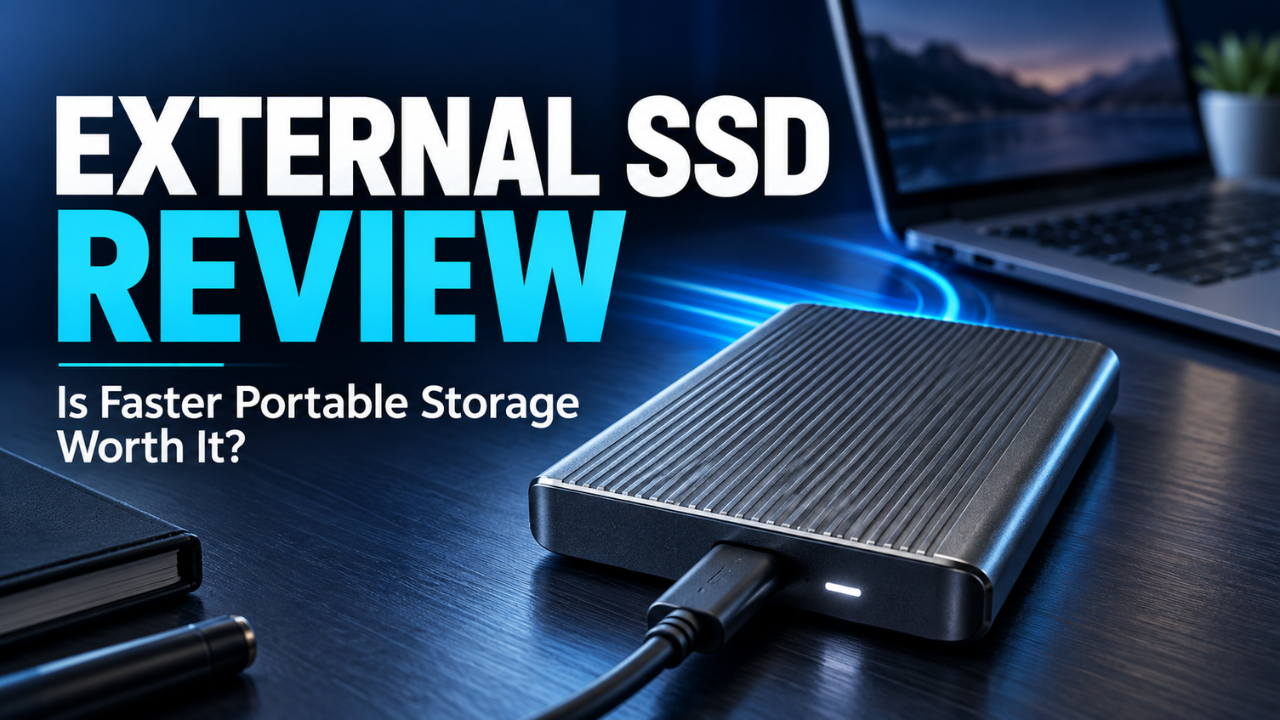
External SSD Review: Is Faster Portable Storage Worth It?
Your laptop flashes a storage warning just as you’re importing photos or downloading a large project. You delete a few forgotten files, empty the recycle bin, and gain enough space to keep going. Next week, you’re doing it again.
An external SSD can break that cycle. It adds storage without requiring you to open your computer, and its speed can make working with files far more comfortable than using an older portable hard drive.
But buying one isn’t simply about choosing the highest number on the box. Your computer’s ports, the files you move, and the capacity you need all affect whether that extra performance is worth paying for.
This external SSD review looks at the category as a whole, with practical buying advice rather than a hands-on verdict on one particular model.
Table of Contents
- What an External SSD Changes in Everyday Use
- Why Advertised Speed Isn’t the Whole Story
- Check Your Computer Before Buying
- How Much Storage Is Enough?
- Working Directly From an External SSD
- Portability, Heat, and Everyday Durability
- Getting Windows and Mac Compatibility Right
- Fast Storage Still Needs a Backup
- When Paying More Makes Sense
- The Verdict: Buy for Your Actual Work
What an External SSD Changes in Everyday Use
An external SSD stores data on flash memory instead of the spinning magnetic platters found inside a hard drive. There’s no mechanical read head moving around to locate your files.
That difference matters when you’re opening folders, browsing photo collections, or copying projects. A suitable SSD can make those jobs feel much more responsive, especially if you’re replacing a slow portable hard drive.
Imagine a freelance designer carrying client assets between a home desktop and a laptop. Keeping the active project on an external SSD can reduce the need to copy everything between machines before each session.
It’s also quiet and easy to carry. Many portable models draw power through their data cable, so there’s no separate power adapter to pack.
However, adding one won’t automatically make your entire computer faster. It helps with files and applications that actually use that drive. A struggling processor or overloaded memory still needs its own solution.
Why Advertised Speed Isn’t the Whole Story
The speed printed on the packaging usually describes performance under specific conditions. It doesn’t promise that every folder will transfer at that rate.
Large, continuous files are generally easier to move quickly than thousands of tiny files. A single video and a folder containing website files might occupy the same space, yet take noticeably different amounts of time to copy.
The source matters, too. If you’re copying from a slow memory card, the SSD can’t pull data out faster than the card supplies it.
Then there’s sustained performance. Some drives use a fast temporary writing area, often called a cache. Once that fills, a long transfer can slow down. Heat and available free space can also affect performance, depending on the model.
That’s why I’d pay attention to large-transfer results when comparing reviews. A quick benchmark looks impressive, but someone regularly moving an entire shoot needs to know what happens after the first burst.
For occasional documents and small photo batches, those differences may barely register.
Check Your Computer Before Buying
Here’s the thing: a USB-C connector tells you the shape of the connection, not its speed.
Two ports that look identical can support different transfer rates. The drive, computer port, and cable all need to support the relevant connection standard to deliver its intended performance.
Before buying, check your computer’s specifications for the actual port speed. Look for a stated data rate, such as 10Gbps, rather than relying on “USB-C” alone.
For example, a drive designed for a faster connection won’t deliver its full potential through a slower port. It may still work perfectly well, but you’re paying for performance that your current setup can’t access.
Cables deserve more attention than they get. A cable that charges your phone might offer only basic data transfer speeds. Start with the cable supplied with the drive.
If transfers seem unusually slow, connect the SSD directly to the computer before blaming the hardware. A hub, adapter, or shared dock can introduce another limitation.
How Much Storage Is Enough?
Capacity is easier to judge once you look at what you already own.
Check the size of the folders you plan to move, then think about how quickly they grow. Someone storing invoices and presentations has very different needs from someone keeping camera originals and video projects.
A 500GB drive may cover a modest collection. A 1TB model offers more breathing room for mixed personal and work files. Moving to 2TB becomes easier to justify when photos, games, or video footage make up most of your storage.
Those aren’t fixed rules. If your current collection already occupies 800GB, a 1TB purchase leaves little room for growth.
I’d rather have useful spare capacity than spend the same budget on extra speed I rarely notice. Constantly deleting files defeats much of the convenience.
Compare prices between capacities within the same product range, too. The cheapest drive doesn’t always provide the best value per terabyte.
Working Directly From an External SSD
You don’t have to treat an external SSD as a box you visit only when your laptop fills up.
It can hold active projects, allowing compatible software to access files directly from the drive. That’s useful for large image collections, audio sessions, and video footage that would otherwise crowd your internal storage.
Picture a blogger maintaining several websites. Screenshots, original photographs, downloaded resources, and finished graphics can quickly become a sizeable collection. Keeping those assets in clearly named project folders on an SSD makes them easier to carry between computers.
Just remember that storage speed is only part of application performance. Video playback also depends on the footage format, editing software, processor, and other hardware.
The connection needs to stay secure while you work. A loose cable can interrupt access at exactly the wrong moment.
Give the drive a stable place on your desk, and avoid letting it hang from the laptop’s port.
Portability, Heat, and Everyday Durability
A tiny drive looks convenient online. Daily use reveals whether its design is actually comfortable.
Does the cable sit neatly beside your laptop? Is the casing easy to grip? Does the connector feel secure? Those details matter when you pack and unpack your equipment every day.
Without moving mechanical parts, SSDs are generally better suited to knocks during use than hard drives. That doesn’t make them indestructible. Ports can break, electronics can fail, and liquid can still cause damage.
If you need water or dust resistance, check the exact rating and its conditions. A rugged appearance alone proves very little.
Warmth during a large transfer isn’t automatically a problem. Some enclosures help carry heat away from the components inside. Repeated disconnections or severe slowdowns deserve investigation, though.
Keep the drive uncovered during demanding work. Sliding it under a blanket or leaving it inside a closed pouch while transferring files won’t help it shed heat.
Getting Windows and Mac Compatibility Right
A drive can connect physically and still need the right formatting for your intended use.
For ordinary file sharing between Windows and macOS, exFAT is a common option. Apple lists it as a Windows-compatible format, while APFS is its modern Mac file system and is optimized for flash and SSD storage. See Apple’s file system guidance.
Choose based on how you’ll use the drive. Moving documents between platforms is different from dedicating it to a particular backup application or photo library. Check that application’s requirements first.
Formatting erases existing data, so copy anything important elsewhere before changing the format.
Also separate basic storage compatibility from optional software compatibility. A drive might work for normal file transfers while its password utility or management application supports only certain operating systems.
A few minutes checking those details can prevent an irritating setup surprise.
Fast Storage Still Needs a Backup
Let’s be honest: moving files off a crowded laptop feels like solving two problems at once. You gain space, and your files seem safely tucked away.
But if you delete the originals, you’ve moved them. You haven’t backed them up.
An external SSD can fail, disappear, or suffer accidental deletion just like other storage. Important work needs another independent copy.
For example, you could keep active projects on the SSD and maintain a separate backup on another drive or through a suitable online backup service. Check occasionally that you can actually restore a file.
If you carry confidential documents, consider encryption that works across your intended devices. Keep recovery information somewhere secure and separate from the drive.
Portability is useful, but it also makes a storage device easier to lose.
When Paying More Makes Sense
Spending more is reasonable when it solves a specific problem.
Regularly moving huge folders through a compatible fast port can justify a higher-performance model. Working outdoors may justify documented environmental protection. Carrying sensitive business files may make supported encryption especially useful.
For ordinary office files, occasional backups, and personal photos, peak speed probably shouldn’t dominate the decision. Capacity, a dependable connection, warranty terms, and a trustworthy seller deserve attention.
A hard drive can still make sense for a large archive that you rarely access, particularly when capacity matters more than transfer speed. Compare current prices for the amount of storage you need.
My preference would be to fund adequate capacity and a second copy of important files before chasing the fastest available connection.
The Verdict: Buy for Your Actual Work
An external SSD is worth considering when you need portable storage that’s comfortable to work from, especially if an older hard drive leaves you waiting.
The strongest purchase matches your computer’s connection, holds your growing collection, and performs consistently during the jobs you actually do. For many people, those qualities matter more than a headline speed figure.
Start with your files and your ports. Choose enough room to grow, keep another copy of anything irreplaceable, and you’ll get far more lasting value from the upgrade.