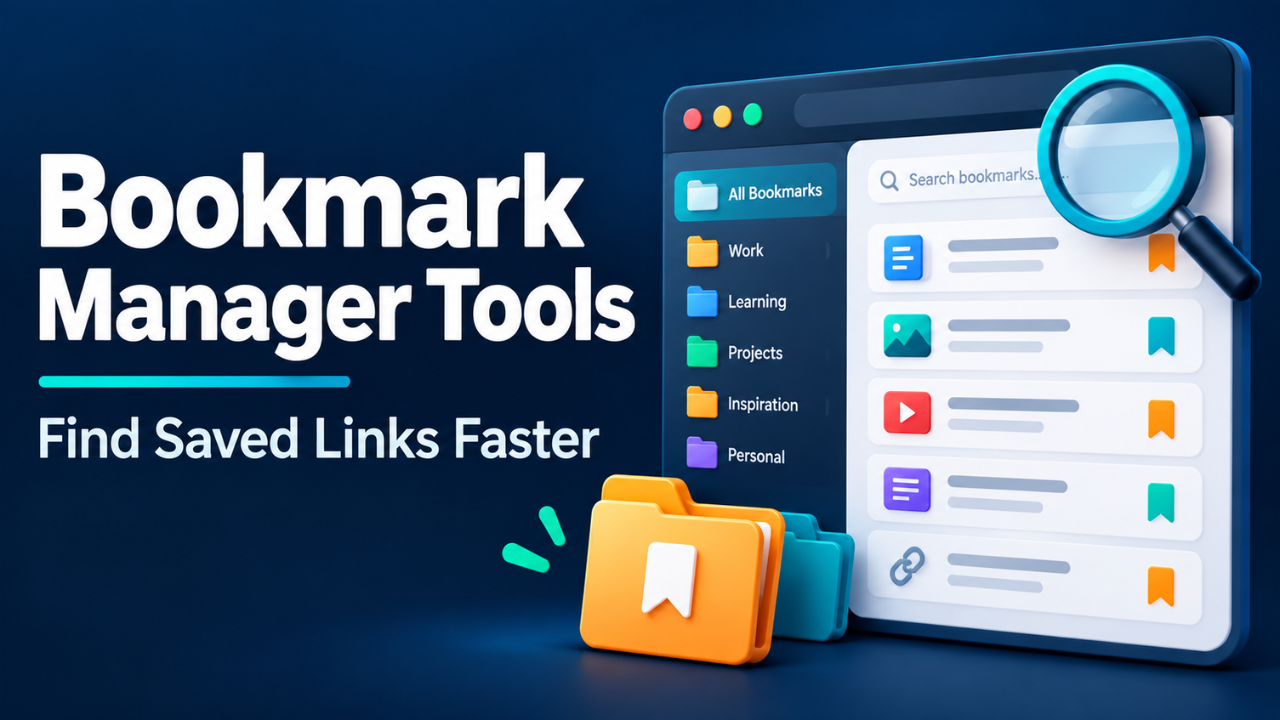
Bookmark Manager Tools: Find Saved Links Faster
You remember the article. It had the exact example you needed, a useful chart, and a headline you were sure you’d recognize. Now you’re searching through browser folders called “Useful,” “Work Stuff,” and, somehow, “Useful 2.”
Saving a link takes a second. Finding it three weeks later can take much longer.
Bookmark manager tools help you close that gap. They give saved pages a home, make collections easier to search, and reduce the temptation to keep every useful website open in a tab.
The trick is choosing a tool that fits how you actually browse. A complicated filing system won’t help much if you stop using it by Friday.
Table of Contents
- Why Saved Links Become Hard to Find
- What to Look for in Bookmark Manager Tools
- Three Tools for Different Working Habits
- Build a System You’ll Actually Use
- Try a Small Import Before Moving Everything
- When Paying for a Bookmark Manager Makes Sense
- Keep Your Collection Useful Over Time
Why Saved Links Become Hard to Find
Most bookmark collections grow without a plan. You save a recipe beside a client dashboard, add a tutorial somewhere else, and leave an interesting report in your open tabs.
None of those decisions feels messy at the time. The problem appears later, when you can’t remember where anything went.
Page titles don’t always help. A headline like “A Better Way Forward” tells you almost nothing about the spreadsheet method you wanted to revisit. If the title stays unchanged, finding that page depends on remembering the website or opening several possible matches.
There’s also a difference between saving something to read and saving something to use. A weekend reading list serves a different purpose from a collection of tools you open every morning.
Keeping those purposes separate makes your collection easier to navigate before you install anything new.
What to Look for in Bookmark Manager Tools
Start with retrieval. Can you find a saved page using the words you naturally remember? Search matters more than a beautiful collection screen once you’ve saved a few hundred links.
Check what the search actually covers. Searching titles and tags is different from searching the text inside a saved article. If you often remember a sentence but forget the headline, that distinction matters.
Saving should also feel easy on your regular devices. Picture finding a useful guide on your phone during lunch. If moving it into your main collection requires copying links between apps, you may keep sending them to yourself instead.
Folders and tags serve different jobs. A folder can hold everything for a website redesign. Tags can identify “pricing,” “examples,” or “research” across several projects. You don’t need dozens of either.
Export deserves attention, too. Before committing, check whether you can download your links in a format another tool accepts. A collection you’ve built over years should be reasonably easy to move.
Finally, distinguish saved links from saved content. A bookmark points to a page; it doesn’t automatically preserve that page if the owner removes it.
Three Tools for Different Working Habits
These options approach organization differently. Your choice should reflect whether you mostly collect research, open familiar resources, or work within Apple’s devices.
Raindrop.io for Collections Across Devices
Raindrop.io offers collections, tags, filters, and several viewing layouts. It also provides browser extensions and apps across major desktop and mobile platforms. Its free offering includes unlimited bookmarks, collections, and devices, with additional features available through upgrades. Raindrop.io features
That makes it a sensible candidate when your links span several subjects and devices.
Imagine managing content for three websites. You could create one collection per site, then use a shared “statistics” tag to find reference material across all three. You wouldn’t need to remember which project first led you to a particular report.
I’d start with a handful of collections and a short tag list. The flexibility is useful, but it can tempt you to spend more time arranging links than opening them.
Start.me for a Daily Resource Page
Start.me organizes bookmarks within customizable start pages. Those pages can also contain notes, feeds, and widgets, and you can keep them private or share them. A browser extension lets you use your page as a new tab page. Start.me overview
This approach suits repeat visits. Think of a freelancer who opens the same project board, invoicing service, client folders, and publishing dashboard every morning.
A page with clear groups can make that routine easier to follow. You can arrange resources around the workday: client work in one group, administration in another.
Keep the page selective. If you fill your daily starting point with every interesting article you’ve ever found, your important shortcuts become harder to spot.
Anybox for an Apple-Based Workflow
Anybox provides apps for Mac, iPhone, and iPad, with iCloud syncing, nested tags and folders, and smart lists. It also offers offline bookmark search and options to archive pages as PDFs, web archives, or screenshots. Its free version limits the number of saved links. Anybox features
It’s worth considering when those are already your main devices and you prefer working through native apps.
A designer might collect reference links on an iPhone, then organize them on a Mac. That’s a more relevant fit than simply choosing whichever service has the longest feature list.
Remember that offline bookmark search doesn’t automatically mean every linked page is available offline. If you need preserved content, test the archive feature on the kinds of pages you save.
Build a System You’ll Actually Use
Now, resist the urge to design thirty folders before saving your first link.
Start with broad destinations based on purpose. “Active Projects,” “Reference,” and “Read Later” are enough for many people. Add a dedicated project collection when the volume of material justifies it.
Give unclear bookmarks better names. “Email examples for welcome sequence” will probably mean more to you next month than “Our Favourite Ideas.”
When the tool supports notes, add a short explanation of why you saved something. “Useful chart for introduction” can save you from rereading a long report to rediscover the relevant detail.
Tags should describe how you might search later. Choose one term for each recurring idea. Using “writing,” “copywriting,” and “content writing” interchangeably creates three places to check when one would do.
Let’s be honest: you won’t carefully file every link while you’re busy. An inbox for unsorted bookmarks is practical, provided you review it. Give yourself ten minutes at the end of the week to move useful items and delete the rest.
Try a Small Import Before Moving Everything
A fresh app can make an old collection look promising. It can also import years of clutter in seconds.
Back up your existing bookmarks first. Then, if the import options allow it, test with one folder or a small exported sample.
Choose realistic examples: a long article, a video, a document link, and a page you use for work. Check whether titles remain readable and folders arrive in a sensible structure.
Next, use the tool for several days. Save links from your phone, retrieve them on your computer, and search for something without relying on its exact title.
Try exporting that sample as well. Check which details survive, especially if you rely on tags or notes. Discovering a limitation with twenty bookmarks is much easier than discovering it with two thousand.
The useful question is simple: did this make your normal browsing easier?
When Paying for a Bookmark Manager Makes Sense
A free plan may cover everything you need if you mainly save links and organize them into collections.
Paying becomes more reasonable when a specific limitation interrupts your work. You might need content search, more storage, page archives, or collaboration features.
Suppose you regularly revisit research but can rarely remember article titles. Better search could justify the expense if it reduces repeated hunting. Extra visual themes probably won’t solve that same problem.
Check the current plan details before subscribing. Confirm that the feature you want is included, then test it with your own material where possible.
Don’t buy a subscription because you expect it to create an organizing habit. Build a workable routine first, then pay to remove a limitation you’ve actually encountered.
Keep Your Collection Useful Over Time
Your bookmark collection doesn’t need to preserve every passing interest.
When a project ends, move its links out of your active workspace. Keep reference material you may reuse, but remove expired offers, abandoned shopping comparisons, and pages that no longer answer a useful question.
Give your reading list permission to shrink. An article that looked interesting six months ago doesn’t deserve a permanent place just because you once clicked save.
The best bookmark manager tools make it easier to return to something worthwhile. Start with a small collection, clear names, and a tool that works comfortably on your devices. When you can find the right page without retracing an entire browsing session, your system is doing its job.