PS5 Controller Not Charging When Connected to PC? Easy Fixes
You plug your DualSense into your PC, play for an hour, and unplug it expecting a decent charge. Five minutes later, the controller dies. Or maybe you left it plugged in overnight and found the battery exactly where it was the evening before.
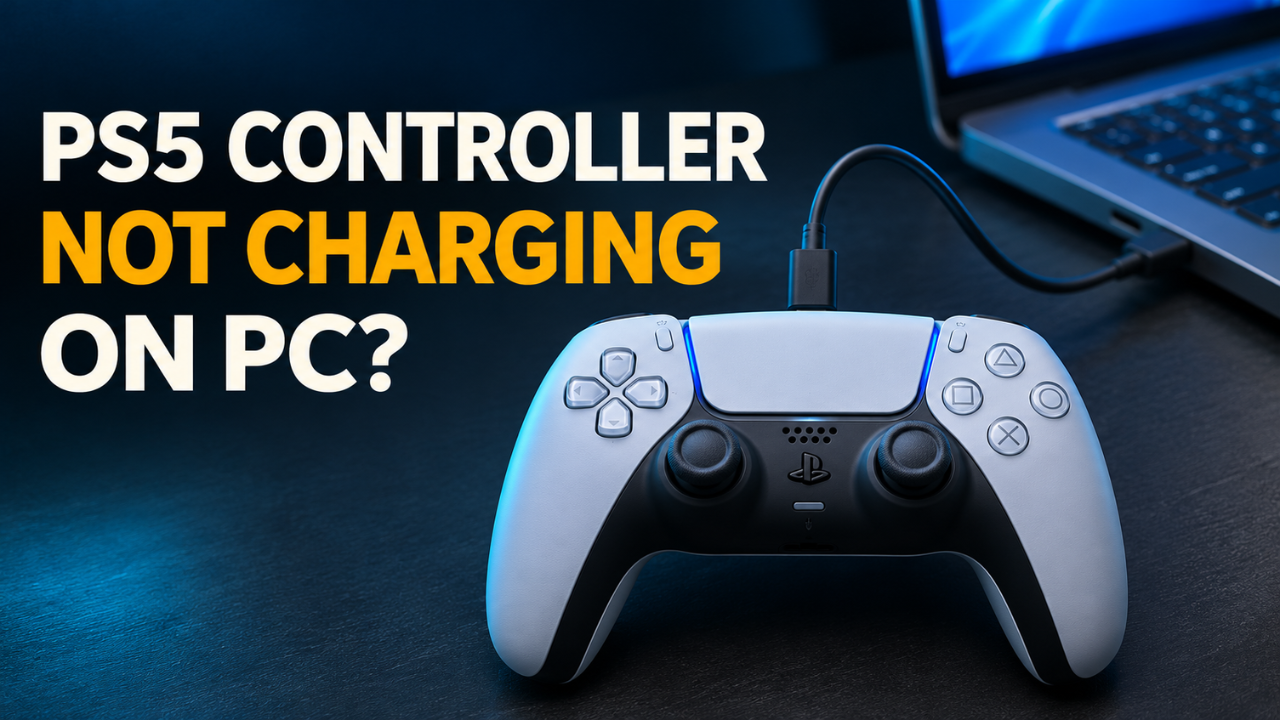
You can charge your PS5 controller by plugging it into your computer’s USB port. For your first test, connect it directly to an awake PC with a USB cable that supports both charging and data. Leave it connected for half an hour with the game closed, then see whether the battery level has risen.
Table of Contents
- Check whether the battery is actually charging
- Try a Different USB Cable and Port
- See what happens when your PC goes to sleep
- Test the controller on another power source
- Update the firmware and reset the controller
- Work out whether the port or battery needs repair
Check whether the battery is actually charging
On Windows, open Sony’s PlayStation Accessories app with the controller plugged in. Check the battery indicator for your DualSense and note where it starts. If you normally play over Bluetooth, select Add Controller to check the connection method. A game can still respond to your button presses over Bluetooth while you’ve got a flaky USB cable plugged in.
The light bar can give you a clue. Sony documents a slow orange pulse when the controller charges from a PS5 in rest mode, and the light goes dark when charging finishes. On a PC, I’d use the app’s battery reading as the main check, especially if the lights look different once you launch a game.
If the meter started low and climbed after a break, the controller is taking a charge. If you’re starting with a nearly full battery, you may see little movement on the indicator. And if the controller was completely flat and the app can’t see it yet, give it the same half hour on a setup you know can charge a DualSense before you judge the battery.
Try a Different USB Cable and Port
The cable that came with your PS5 is a good one to reach for. If you’ve got a drawer full of lookalikes, pick a cable you’ve used to charge a device and transfer files. The DualSense takes USB-C at the controller end, and you can use either USB-C or the older rectangular USB-A at the computer end, depending on your PC. Sony recommends a cable that supports both charging and data for troubleshooting.
Plug the cable straight into the computer. On a desktop, try a rear port beside the other motherboard connections. On a laptop, try another built-in port. If you usually plug into a monitor, keyboard, or dock, bypass it for this test. Once you have a direct connection that works, you can add the hub back and see what happens.
Change one thing at a time. Try a second cable in the same port, then take that cable to another port. Say it works at the back of your tower and repeatedly cuts out at the front. You’ve narrowed it down to the front USB connection. If the second cable works in both places and the first fails in both, you can retire the first cable with a fair amount of confidence.
If Windows keeps losing the controller’s wired connection, try a flash drive in the same port. See whether you can open a file and keep the drive connected. If both devices drop out, restart Windows and test again. Persistent trouble with several USB devices gives you a reason to check Windows Update and your PC maker’s support page for driver updates.
See what happens when your PC goes to sleep
Let’s say the controller charges while you’re at your desk, but the level barely moves after you close your laptop and walk away. Check what the computer does when the lid closes or the system sits idle. Windows has separate timers for turning off the display and putting the computer to sleep. The screen can go dark while the PC stays awake.
Run one test with the computer awake the whole time. If you’re on a laptop, connect it to its charger. You can search Windows Settings for sleep and temporarily extend the sleep timer if it’s set to kick in quickly. If the battery rises, try a second test with the same port and cable while the computer sleeps. Start with room left in the controller battery so there’s a change to measure when you wake the PC. Then put the sleep timer back to your usual setting.
If charging works only while the computer is awake, check your model’s manual for a USB port that supplies standby power. Some laptops have a designated charging port that works during sleep, and some stop supplying power to accessories once the laptop’s own battery falls below a certain level.
Test the controller on another power source
If you have a PS5 nearby, turn the console on and connect the DualSense with the cable you’ve been testing. Press the PS button, then open Accessories in the control center. The battery icon animates while charging. With the console awake, you can run the test even if you’ve never set up USB power in rest mode.
Another awake computer is worth trying, too. If you’re using a wall charger, Sony specifies compatibility with USB Battery Charging 1.2. Use one you’ve already charged a DualSense with if you have it handy. If the controller gains charge elsewhere using the same cable, go back to the original PC and focus on its USB ports and sleep settings.
Got access to a DualSense charging station? It uses the contacts on the bottom of the controller. If the controller charges there but fails over USB with several working cable and port combinations, the controller’s USB-C socket or the circuitry behind it deserves a closer look.
Update the firmware and reset the controller
Once you have a stable connection, open PlayStation Accessories and look next to the controller’s firmware version. If Update appears, follow the prompts. Keep your PC on and the controller connected until the update finishes. If the cable cuts out when it moves on your desk, get a steady connection before starting the update.
You can also update from a PS5 if the controller works on the console. Open Settings → Accessories → Controller (General) and select DualSense Wireless Controller Device Software. Once the update finishes, retest USB charging on your PC.
If the controller still connects inconsistently, try a reset. Turn off your PS5 if it’s running, then unplug the cable from the controller. Look for the tiny reset hole on the back near the Sony logo. Use a pin to hold the recessed button down for at least five seconds. Reconnect the controller to the PC with the same cable and port you used for the earlier test, so you can see whether the reset made any difference.
Work out whether the port or battery needs repair
Give the controller time to reach room temperature if it’s been somewhere unusually hot or cold. Sony recommends charging between 50°F and 86°F (10°C and 30°C). If the controller’s been sitting on a sunny windowsill or in a cold car, move it indoors and try the charging test again once it’s had time to adjust.
Take a look into the controller’s USB-C socket with a flashlight. A plug that feels loose with several cables, or a connection that drops whenever the cord shifts on its own, points toward the socket. If two good cables both need to sit at an angle to work, it’s worth having the port checked.
Battery wear tends to show up after you unplug. Say the meter reaches full on your PS5, but the controller shuts off a few minutes into a wireless session. If it keeps doing that after a full charge, especially if your play time has been getting shorter for months, the battery may be losing capacity. If the meter never rises on any known working source, the battery or the controller’s charging hardware may need service.
Once you’ve found a setup that gets the meter moving, let the controller charge fully and see how it holds up in your next wireless session. That’s the check I’d trust before spending money on a replacement. If it gets you through the evening, keep that cable handy and use the port you’ve tested.