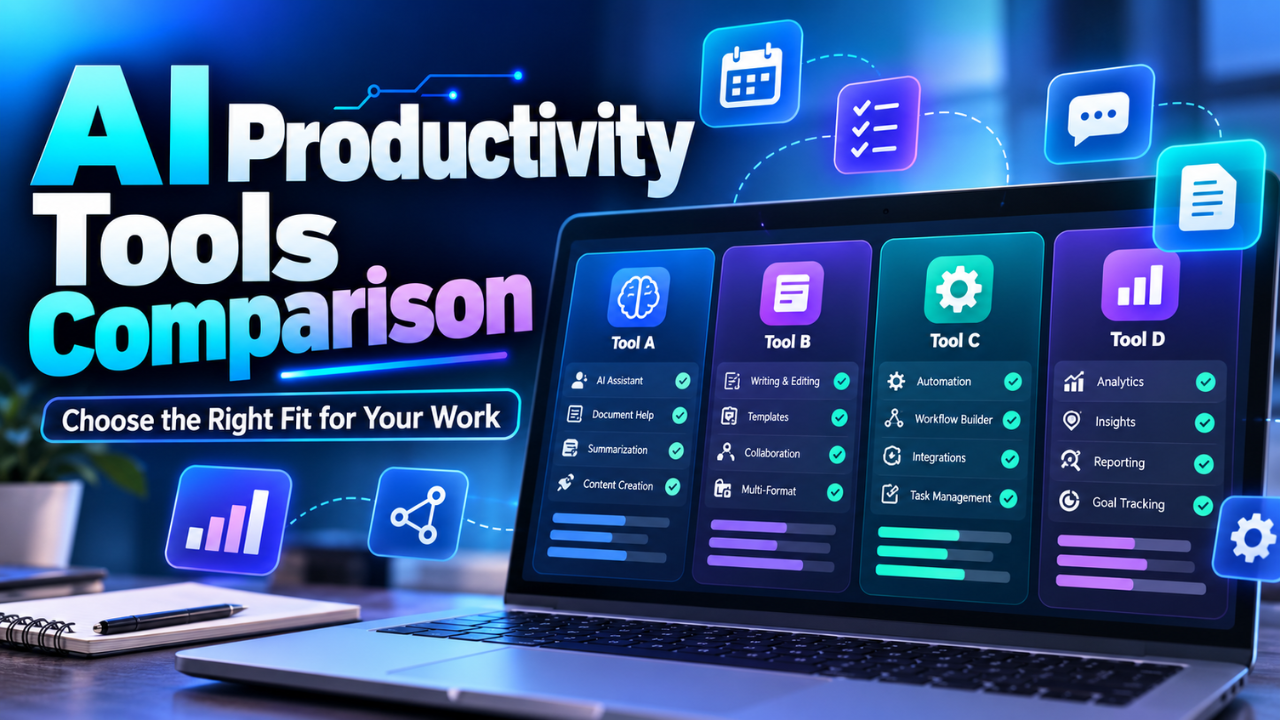
AI Productivity Tools Comparison: Choose the Right Fit for Your Work
You don’t need another app that simply adds more tasks to your list. You need one that helps with the work already piling up: sorting notes, summarizing files, preparing a first draft, or finding the important detail buried in an email thread.
That’s where productivity tools differ. Some are flexible assistants for many kinds of tasks. Others are most useful when they’re built into the documents, spreadsheets, or team workspace you already use. The best choice depends less on which tool sounds most impressive and more on where your work happens each day.
Table of Contents
- What Should a Productivity Tool Actually Do?
- AI Productivity Tools Comparison at a Glance
- ChatGPT: A Flexible Generalist
- Gemini: A Natural Fit for Google Workspace
- Microsoft Copilot: Useful Across Office Work
- Notion AI: Best for Knowledge Kept in Notion
- Match the Tool to the Work
- How to Choose Without Overthinking It
- Make the Tool Earn Its Place
- The Takeaway
What Should a Productivity Tool Actually Do?
“Productivity” can mean almost anything, so it helps to start with a real task. Maybe you spend half an hour every Monday turning meeting notes into action items. Maybe you need to compare several reports, but the useful details are scattered across different files. Or perhaps your team has a carefully maintained workspace that nobody can search properly.
A useful tool should make one of those jobs simpler. It might help you find information, summarize a long document, organize ideas, draft a response, or turn a rough plan into something you can share. The key question is whether it fits naturally into the work, with enough context to give a useful result.
There’s a trade-off here. A standalone assistant can help with many tasks, but you may need to provide the background each time. A tool built into your office suite or team workspace may already be near the relevant files, though its usefulness depends on how well that workspace is organized.
AI Productivity Tools Comparison at a Glance
| Tool | Strong fit | Practical trade-off |
|---|---|---|
| ChatGPT | Flexible help with writing, files, analysis, and ongoing projects | You may need to bring in the context yourself |
| Gemini | Work that lives in Google apps | Workspace connections and features can depend on account setup |
| Microsoft Copilot | Word, Excel, PowerPoint, Outlook, and Teams tasks | Its value is clearest if you already use Microsoft 365 |
| Notion AI | Notes, documents, databases, and team knowledge in Notion | Less compelling if your team’s information lives elsewhere |
Each tool can do more than the quick summary above suggests. Still, this is a useful first filter: match the tool to your work’s home base before comparing individual features.
ChatGPT: A Flexible Generalist
ChatGPT is a good place to start if your work changes from day to day. You might ask it to summarize a PDF in the morning, help structure a presentation after lunch, then look for trends in a spreadsheet before you finish. It can work with uploaded files, analyze data, and organize related conversations and materials into Projects.
That range is useful for people who don’t spend the whole day in one software suite. Imagine a small business owner preparing for a supplier call: they can provide a few product notes, a spreadsheet, and last month’s discussion, then ask for a short briefing and a list of questions to raise. It gives you a much stronger place to start than staring at a blank page.
The catch is context. If the information is in a separate drive or company system, you may need to upload it, connect a source, or explain what matters. ChatGPT can help shape the work, but you should still check figures, names, and claims before passing the result along.
Gemini: A Natural Fit for Google Workspace
If your work already runs through Gmail, Docs, Sheets, and Slides, Gemini may feel more convenient because its assistance is available within Google’s ecosystem. Depending on the account and plan, it can help draft or summarize content in Workspace apps, while Gemini Apps can connect with Google Workspace data when the relevant settings are enabled.
Picture a project lead who gets a long email thread, a shared document, and a spreadsheet before a planning meeting. Being able to ask for the key points and continue working in familiar apps can cut down on copying text between tools.
That convenience depends on your setup. Workspace features may require an eligible plan, and connections can depend on account settings. If your team stores its work in Microsoft 365 or Notion, Gemini’s close fit with Google apps matters less. Choose it because the work is already there, not because you expect any assistant to know your entire business by default.
Microsoft Copilot: Useful Across Office Work
Copilot is worth considering if your routine already revolves around Microsoft 365. Microsoft describes Copilot features across Word, Excel, PowerPoint, Outlook, OneNote, and Teams, including help with documents, data, presentations, inbox tasks, and meeting summaries. The specific options available depend on your subscription and setup.
This can be a practical fit for an office team that moves constantly between a spreadsheet, an email chain, a slide deck, and a Teams meeting. Rather than export and reformat everything, people can get assistance close to the work they’re doing.
Copilot is less of an obvious choice if you rarely use those apps. An assistant’s presence in a menu doesn’t automatically make it helpful; the gains come when it shortens a task you perform often. For a team weighing the cost, try it on a recurring job first, such as preparing a weekly project update. If it saves time without creating extra review work, that’s evidence you can use.
Notion AI: Best for Knowledge Kept in Notion
Notion AI makes the most sense when Notion is already where your team keeps notes, project pages, documents, and databases. Its features can use workspace context to help draft or edit pages, search connected sources, summarize meeting notes, and work with databases. Which AI features are available can depend on your plan.
For example, a new team member might need to understand how a project has changed over the last few months. If decisions and updates are recorded consistently, workspace search and summaries can help them find the thread without asking three colleagues to retell it.
Here’s the limitation: a smart search can’t make missing notes appear. If the important decision was never written down, or project pages are outdated, Notion AI has little to work with. It can make a well-kept workspace easier to use; it won’t fix poor documentation on its own.
Match the Tool to the Work
It’s tempting to compare these tools as if they were competing for one universal job. In daily use, they often serve different roles. A freelancer might use ChatGPT to think through an outline and examine client files, Gemini to help inside Google Docs, or Copilot to summarize meetings in Teams. A product team might keep its decisions and project notes in Notion, then use Notion AI to search that material.
Consider a straightforward task: prepare a short update for a client. The assistant may help pull key points from notes and produce a readable draft. But you still need to verify dates, decisions, and promises. A tool that saves ten minutes on the first draft may not save any time if you spend fifteen minutes correcting it.
So compare workflows, not slogans. Pick one repetitive job, run it through a tool using real but appropriate work material, and see whether the result is accurate enough to use. Note any steps the tool adds: uploading files, fixing formatting, or explaining context again. Those minutes count too.
How to Choose Without Overthinking It
Start with the apps and files you already use. If most work sits in Google Workspace, test Gemini. If your team relies on Microsoft 365, look at Copilot. If your information is organized in Notion, try Notion AI on a real workspace question. If your tasks span different file types and don’t belong to one suite, ChatGPT’s broader range may be a better starting point.
Then test two or three specific tasks, not every feature you can find. Use a meeting summary, a spreadsheet question, or a first draft that you regularly need. Check whether the output is accurate, easy to edit, and actually useful. A tool that performs well on one small, repeated job may be more valuable than a dazzling demo that doesn’t match your week.
Before adopting it for company work, check the available plan, account settings, and your organization’s rules for sharing data. Features and access can vary. It’s sensible to confirm those details using the current terms for your account rather than assume the free or personal version works the same way.
Make the Tool Earn Its Place
Give the assistant a clear task and enough context to do it. “Summarize this” is vague; “Summarize the decisions, open questions, and owners from these notes” gives it a useful target. For recurring tasks, save a short instruction or checklist so you don’t have to start from scratch each time.
Keep a human review step for anything that leaves your desk. Check numbers, dates, names, and the tone of client-facing messages. If the tool works with sensitive information, follow your organization’s policy and the product settings for your account.
Finally, measure the result in ordinary terms: Did it reduce the time this task takes? Did it help you catch something you might have missed? Did you have to rewrite most of the output? If the tool adds friction, drop it or try a different fit. Productivity software should make a real task easier, not become another task to maintain.
The Takeaway
The best AI productivity tool is the one that fits your daily workflow and reliably improves a job you do often. ChatGPT offers flexibility across tasks, Gemini and Copilot fit closely with their respective office suites, and Notion AI can help teams work with knowledge stored in Notion. Start with one recurring task, test the tool against it, and let the results guide your choice.