AI Meeting Productivity Tools That Save Time After Every Call
The call ends, everyone agrees on the next steps, and you get back to work. Then a message arrives: “What did we decide about the deadline?” Someone else asks who’s contacting the client. You open your notes and discover three unfinished sentences.
That’s where meeting productivity starts to fall apart.
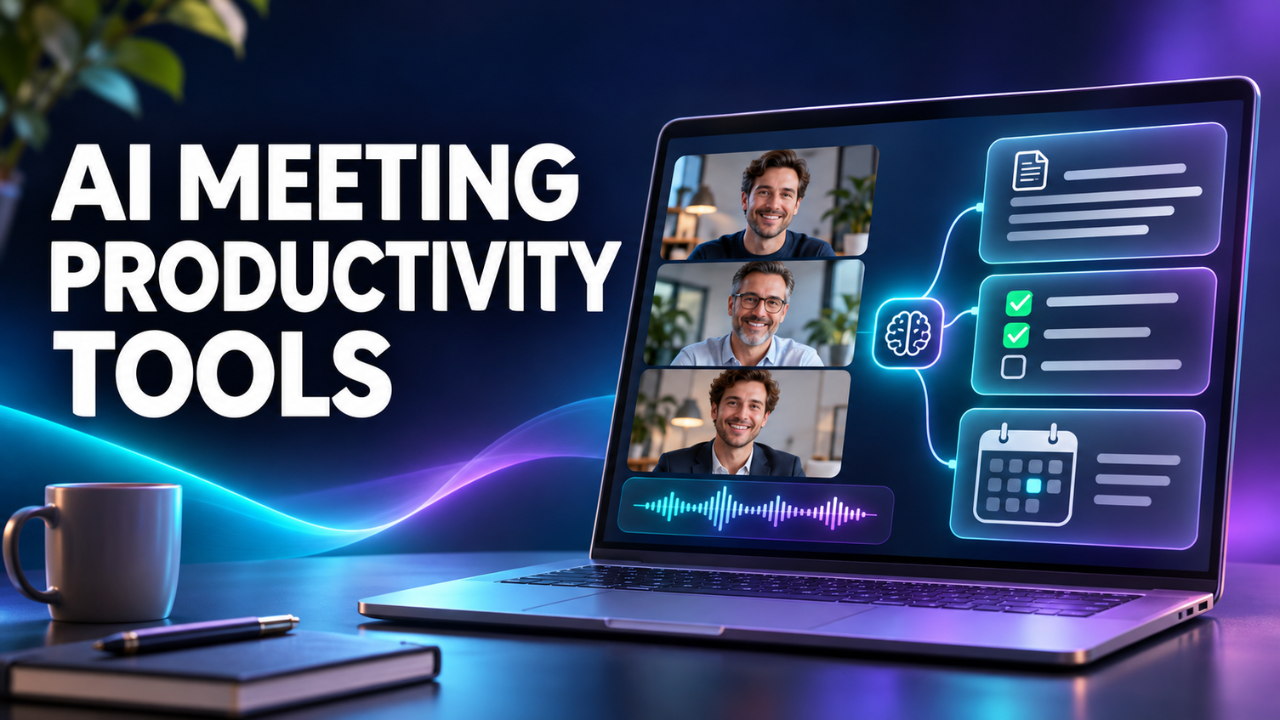
AI meeting productivity tools can capture conversations, create summaries, and pull out follow-up tasks. But their value depends on what happens next. A tidy transcript won’t move a project forward by itself. The useful setup helps people stay present during the conversation, then makes the decisions clear enough to act on without another call.
Table of Contents
- The real time drain happens after the call
- Start with the tools your team already uses
- When a separate meeting assistant makes sense
- Better notes begin with a clearer conversation
- Give every follow-up a name and a deadline
- Make previous decisions easy to find
- Keep recording and sharing under control
- Run a small trial and count the time saved
The real time drain happens after the call
A thirty-minute meeting rarely costs just thirty minutes. There’s preparation, the conversation itself, and the work of turning scattered remarks into something useful.
Imagine a small agency finishing a client call about a website launch. The designer needs approved colours. The writer needs the final page list. The project manager needs to know whether Friday is a firm deadline or a hopeful suggestion.
If nobody captures those distinctions, three people start chasing answers separately.
That’s the problem worth solving first. Before comparing software, identify where your time disappears. Do you spend ages writing recaps? Miss tasks while taking notes? Struggle to remember why a decision changed?
Each problem points towards a different feature. Transcription helps capture detail. Summaries help with review. Task extraction helps with handovers. Search helps recover context later. You may need all four, but knowing your biggest frustration makes choosing much easier.
Start with the tools your team already uses
Check your existing meeting platform before adding another subscription. Keeping notes close to the conversation can make them easier for colleagues to find.
Microsoft Teams offers intelligent recap features, including generated notes and suggested tasks, through eligible Teams Premium or Microsoft 365 Copilot licences. Availability depends on the feature, meeting setup, and organisation’s settings. For a team already working in Teams, it’s a sensible place to investigate first.
Zoom provides meeting summaries on eligible accounts when the relevant features are enabled. Hosts control whether summaries are shared, and participants can receive them through email and Zoom Chat. That can suit teams whose main frustration is writing and circulating a recap after every call.
Neither option automatically becomes the right choice because you already use the platform. Test the output against your actual conversations. Can it distinguish a confirmed decision from a suggestion? Does the recap reach the people who need it?
Also check what your current licence includes. A feature you’ve seen in a demonstration may require an upgrade or an administrator to enable it.
When a separate meeting assistant makes sense
A separate assistant is worth considering when your calls happen across several platforms or you want a dedicated place for meeting records.
Otter offers live transcription, meeting summaries, action-item capture, and search across meeting content. Its shared channels can group conversations by team, project, or topic. Those capabilities make it worth evaluating when capturing and revisiting discussions is your main need.
Fireflies supports meeting capture across services including Zoom, Google Meet, and Teams. It provides transcripts, summaries, action items, search, and integrations that send meeting information to other tools. It’s another candidate for teams that regularly switch between internal calls and client platforms.
I’d judge either option by a fairly ordinary question: how much cleaning up does the output need?
A long feature list won’t help if you spend fifteen minutes correcting names and reorganising every summary. Test with the accents, background noise, specialist terms, and speaking styles your team actually brings to a call.
Better notes begin with a clearer conversation
Even a good meeting assistant struggles when people talk over one another or leave every decision implied.
You don’t need to speak like you’re dictating minutes. Just close important topics clearly. “We’re choosing the smaller package, and Priya will send the revised quote tomorrow” gives everyone something concrete to work with.
Compare that with: “Let’s probably go with that one, assuming everything’s okay.” Which one? What needs checking? Who’s checking it?
Before the call, add a short purpose to the invitation. “Choose the launch date” is more useful than “Launch discussion.” Share the document people need to review, too. Spending ten minutes reading it aloud is an expensive use of everyone’s attention.
During the meeting, let automated notes reduce your typing so you can listen properly. You’ll still need to notice hesitation, ask follow-up questions, and check whether people agree. Capturing words doesn’t replace the work of understanding them.
Give every follow-up a name and a deadline
The most useful part of a recap is often the smallest: a clear record of who will do what, and when.
“Discuss supplier options” isn’t much of a task. “Daniel will compare three suppliers and share a recommendation by Thursday” is something a person can complete.
After the call, have one person check the extracted actions before sharing them. Pay particular attention to names, dates, quantities, and conditional promises. “We could deliver next week” should never quietly become “Delivery confirmed for next week.”
Then move approved tasks into the place your team already tracks work. Use a supported integration if it helps, or copy them manually if there are only two. The point is to give each task an owner and a visible status.
For client calls, review the outgoing recap separately. An internal note about negotiating a price may be useful to your team without belonging in the client’s inbox. Don’t let automatic sharing make that decision for you.
Make previous decisions easy to find
Search becomes valuable when a project has been running long enough for memories to blur.
Someone asks why you dropped the original homepage design. Without a usable meeting record, the team may reopen a discussion that was settled weeks ago.
Give meetings recognisable names and organise records by client or project. “Acme website: navigation approval” will be easier to spot than six recordings called “Weekly catch-up.” Keep related documents near the recap where your system allows it.
When choosing a tool, try searching for an actual decision rather than a word you know appears in the transcript. Can you find what was agreed, the reason behind it, and the relevant passage?
For important details, go back to that passage or recording. A short answer can leave out the condition that made the decision acceptable.
Keep recording and sharing under control
People should understand when a meeting is being recorded or transcribed, why it’s happening, and who will receive the notes. Make that clear before capture begins and follow your organisation’s requirements.
Check automatic joining settings before connecting your calendar. You may want help with project calls while keeping private conversations outside the system.
Access deserves the same attention. A client project recap and a sensitive staff discussion shouldn’t land in the same shared collection simply because one person attended both.
Review retention settings, too. Find out what happens to transcripts, recordings, and summaries when you delete them; don’t assume removing one removes everything else.
These choices affect whether people feel comfortable speaking openly. A tool that makes colleagues cautious about asking questions can undermine the conversation you’re trying to improve.
Run a small trial and count the time saved
Start with one recurring meeting and one tool. A weekly project review gives you a manageable way to see whether the setup helps.
Before the trial, note roughly how long preparation and follow-up take. Over the next two weeks, track the time spent reviewing summaries, correcting mistakes, and transferring tasks. Include setup time rather than pretending it doesn’t count.
Suppose you previously spent twenty minutes writing each recap. If reviewing the generated version takes five, you’ve saved fifteen minutes per meeting. If corrections take eighteen, the benefit is much smaller.
Ask colleagues whether they can find decisions faster and whether responsibilities are clearer. Those improvements matter alongside the minutes saved. Compare the subscription cost with the benefit across a normal month.
The best AI meeting productivity tools earn their place through ordinary improvements: less typing, fewer clarification messages, and tasks that reach the right person. Choose one that fits your conversations, check its work, and keep the setup simple enough that people actually use it.