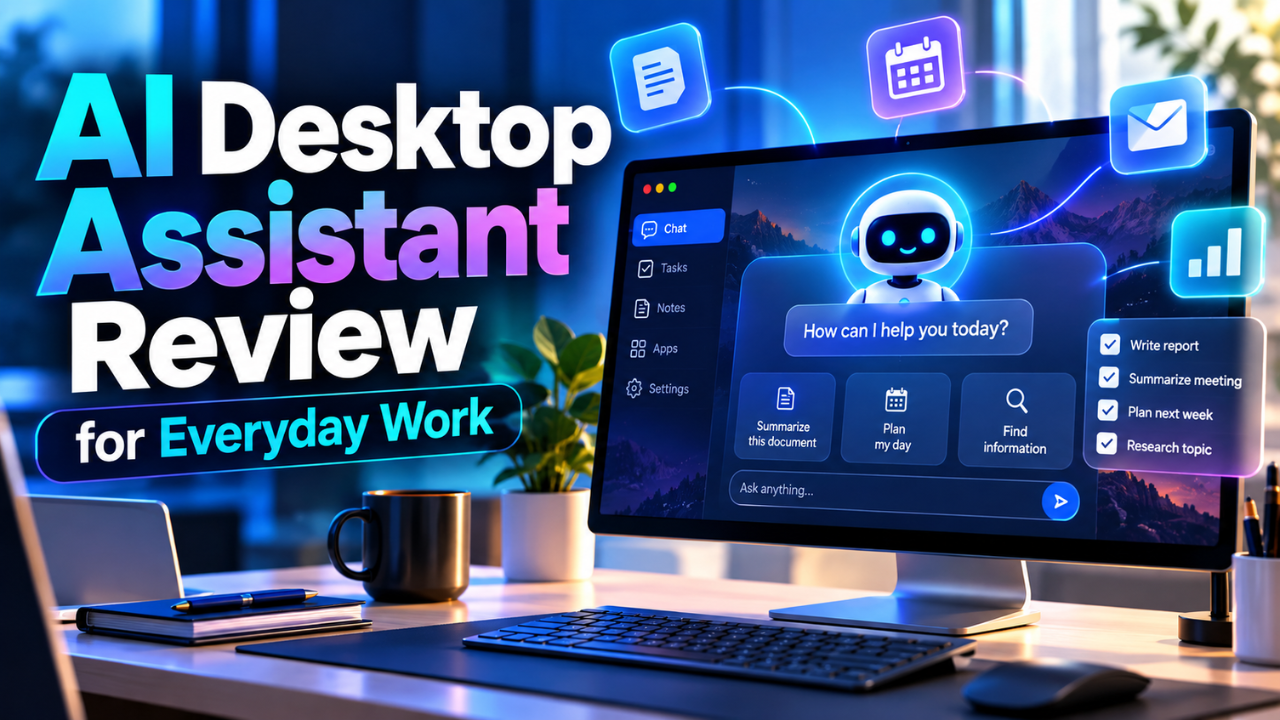
AI Desktop Assistant Review for Everyday Work
Your computer can be full of useful software and still make simple work feel slow. You’re jumping between a document, a browser, and a folder you’re fairly sure you organized last month. By the time you find what you need, you’ve lost your train of thought.
An AI desktop assistant promises to reduce that friction. The label covers several kinds of apps, so the experience depends on what each one can access and do.
My view is straightforward: these assistants are worth considering for frequent reading, drafting, and troubleshooting tasks. Their value becomes less convincing when you expect complete automation or answers you never need to check.
Table of Contents
- What an AI Desktop Assistant Actually Does
- Setup Should Feel Easy
- Where It Helps During a Normal Workday
- Screen Awareness Needs a Closer Look
- How Much You Can Trust the Answers
- Privacy Settings Deserve Five Minutes
- What Makes a Paid Plan Worthwhile
- The Verdict for Everyday Users
What an AI Desktop Assistant Actually Does
A desktop assistant gives you a conversational way to ask for help while using your computer. Depending on the app, you might share a file, capture part of your screen, use voice, or connect a supported application. Some tools mainly provide answers. Others can make changes within specific environments.
Microsoft’s Copilot app for Windows, for example, documents desktop features such as file search, screenshots, and help finding Windows settings. Those additions give it practical reasons to live outside a browser tab.
OpenAI’s documented Work with Apps feature on macOS supports selected text editors, coding tools, and terminals. In supported coding environments, it can propose file edits for you to review and apply. That’s a specific integration, rather than a promise of access to every application.
The useful question is whether your chosen assistant works with the software you actually use. A clever feature has little value if it’s unavailable in the app where you spend most of your day.
Setup Should Feel Easy
Installation is only the beginning. You may need an account, an updated operating system, and permissions for features such as screen sharing or microphone access. Check compatibility before paying, especially if you use an older laptop.
Start with one ordinary task. Open a harmless document and ask for a summary, or share a screenshot of an unfamiliar settings page. This reveals more about the experience than a polished demonstration.
Pay attention to the small details. Can you bring up the assistant without hunting for its window? Does it explain which content you’re sharing? Can you stop sharing immediately?
Speed also includes the time you spend correcting or repeating a request. If opening the assistant, supplying context, and fixing the result takes longer than doing the task yourself, its quick response hasn’t saved you much.
Where It Helps During a Normal Workday
The strongest use cases tend to involve information that needs organizing. Think of a long email chain where the actual request is buried beneath replies. An assistant can review the messages you provide and identify any questions that still need answers.
For a freelancer, that might mean turning scattered client notes into a usable project outline. You’d still check the scope and delivery date before sending it, but having the material arranged can make the next step easier.
It can also help with unfamiliar language. Imagine a supplier sends a technical specification containing three terms you don’t recognize. Asking for plain explanations gives you a starting point for a more useful conversation.
Drafting benefits from clear instructions. “Reply politely and confirm
” gives the assistant something concrete to work with. Include the facts it needs, particularly any promises you’ve already made.
I’d judge usefulness by how often these everyday tasks become easier. Occasional impressive answers are enjoyable; reliable help with recurring work has a stronger claim on your time.
Screen Awareness Needs a Closer Look
Screen sharing can reduce the effort of explaining a problem. Instead of describing a confusing interface from memory, you can show the relevant window and ask a focused question.
Microsoft says Copilot Vision can discuss shared screen content and guide you through it, but Vision itself doesn’t click, type, or scroll for you. Understanding that distinction helps set realistic expectations before you begin.
Suppose you’re trying to change a setting in an unfamiliar app. Guidance could help you locate the right control, yet you still need to confirm that the advice matches the version in front of you.
Ask the assistant to describe what it can see before requesting a complicated explanation. If it misses an important label or reads a number incorrectly, narrow the shared area or provide the text directly.
For tools that can take actions, check their supported tasks and review controls separately. An explanation, a suggested edit, and an applied change carry different responsibilities. The interface should make the current stage clear.
How Much You Can Trust the Answers
Fluent wording can make an answer seem more settled than it is. That’s especially awkward when you’re moving quickly and the result looks sensible at first glance.
A useful check is to choose a task where you already know the answer. Ask the assistant to extract a deadline from a short document or identify the quantity on a sample invoice. Compare its response with the original.
Then make the task slightly harder. Add two dates and ask which one refers to delivery. This helps you see whether it follows the wording or grabs a nearby number.
Summaries deserve similar attention. Ask where a particular conclusion came from, then check the relevant passage yourself. A short answer can leave out an exception that changes what you should do next.
For anything that affects a client commitment or an important decision, keep the original material available. The assistant can help you review it, but you remain responsible for the result.
Privacy Settings Deserve Five Minutes
A desktop app can handle information that never would have appeared in an ordinary search query. Screenshots may include private messages. A document could contain customer names or internal notes.
Before sharing, check what the service stores, how you can delete it, and whether your account offers controls over data use. Also confirm that you’re allowed to share the material in the first place.
OpenAI’s Work with Apps documentation says included content becomes part of chat history and explains controls for model improvement and Temporary Chat. That’s a useful reminder that sharing app content involves more than granting permission on your computer.
A sensible first test uses sample information. You can explore the workflow without exposing a real client file. When you move to actual work, share only the material needed for the question and check for unrelated details in the same window.
What Makes a Paid Plan Worthwhile
Let’s be honest: another monthly subscription needs to earn its place. A longer feature list doesn’t tell you whether you’ll use the additions enough to justify paying.
Try the available free access or trial with a few recurring tasks. Note where the assistant helped, where you had to fix its output, and whether you encountered limits that interrupted useful work.
Here’s a simple example. If an assistant saves ten minutes on a task you perform twenty times a month, that adds up to more than three hours. Subtract the time spent checking and correcting its work before deciding what that saving is worth.
Read the current plan details carefully. Features can depend on your operating system, account, subscription, or region. Make sure the version you’re buying includes the capability that attracted you.
If your needs are occasional, existing access may be enough. Paying makes more sense once you’ve identified a repeated benefit and a limit you actually need to remove.
The Verdict for Everyday Users
Desktop assistants have a convincing role in work that involves reading, organizing information, and getting unstuck. Quick access and useful app integrations can reduce interruptions, especially when you ask focused questions and supply clear context.
They’re a less comfortable fit when your work requires consistently correct answers without review, or when your main expectation is that they’ll handle any application automatically.
My recommendation is to begin with one frustrating task you repeat regularly. See whether the assistant makes it easier, then build from there. You don’t need to reshape your entire working day around a new app.
The best choice is the one you can call on easily, understand clearly, and trust within known limits. Keep it because it helps you finish real work with fewer delays.