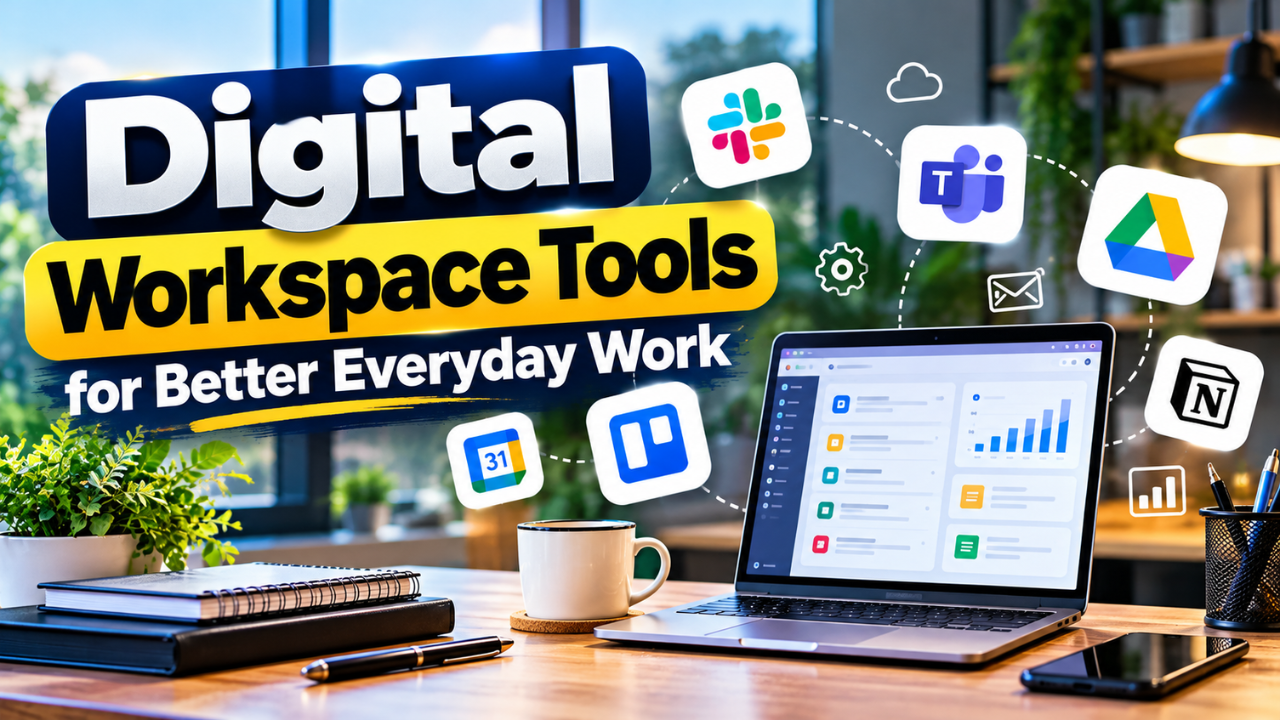
Digital Workspace Tools for Better Everyday Work
A client approves a change in an email. Someone adds it to a spreadsheet. The designer keeps working from yesterday’s brief because the update never reaches the project folder. When everyone finally realizes what has happened, more changes need to be made.
That’s the kind of friction digital workspace tools can help remove. These tools provide a shared space where people can communicate, organize tasks, and collaborate on files, whether they work in the same office or from different locations.
The challenge is choosing tools that fit your working day. A crowded collection of apps can create its own confusion. What helps is a clear route from a request to a finished piece of work, with enough context for the next person to continue.
Table of Contents
- What Digital Workspace Tools Actually Do
- Begin With the Tasks That Keep Slowing Down Work
- Give Conversations a Clear Home
- Keep Tasks Separate From Chat
- Make Documents Easy to Find and Trust
- Choose Connections That Save Real Effort
- Check Access and Everyday Reliability
- Introduce the Workspace Through One Real Project
- Know When the Setup Is Working
What Digital Workspace Tools Actually Do
Digital workspace tools are applications that support everyday work in a shared online environment. Some handle communication. Others organize projects, store documents, or keep useful information available to the team.
A workspace might combine several products or use a suite with connected applications. Google Workspace, for example, includes Gmail, Drive, Docs, Meet, and Calendar. Microsoft Teams supports sharing files in chats and channels, bringing documents into the conversations where people discuss them.
These products provide the structure. Your team still has to figure out the best way to use it.
A freelance editor might only need a shared folder, a document editing tool, and a basic task board to manage their work. A larger business may need department spaces and more detailed access controls. Both should help someone understand what’s happening without chasing several colleagues for an update.
Begin With the Tasks That Keep Slowing Down Work
Before comparing software, look at a task that regularly causes delays.
Perhaps customer requests arrive through email, but nobody knows who’s handling them. Maybe project updates live in private messages, leaving other people unaware of changes. Sometimes the problem is as ordinary as an unclear folder name.
Follow one request from arrival to completion. Notice where someone searches for information, copies details between systems, or waits for a decision. Those moments tell you what the workspace needs to support.
Imagine a small agency preparing a website. The brief arrives, a designer creates layouts, the client reviews them, and a developer starts building. If approval keeps getting lost, a clear review process deserves attention before another reporting dashboard.
I’d begin with that recurring delay. It makes it easier to spot areas that need improvement and see whether a new tool brings real value to your work.
Give Conversations a Clear Home
Team messaging makes quick questions easier, but a busy chat can become difficult to follow.
Give recurring work a predictable place. A project conversation can hold questions about that project, while general announcements belong somewhere everyone knows to check. People joining later should be able to find the decisions that affect their work.
The distinction between discussion and a final decision matters. After a conversation about changing a deadline, record the agreed date in the task itself. Otherwise, someone has to read thirty messages to discover which suggestion everyone accepted.
Set realistic expectations for replies, too. A message sent late in one person’s day may arrive before another person has started work.
Let’s be honest: constant notifications make it hard to concentrate. Agree on how to flag urgent issues, then let routine questions wait until people check their messages.
Keep Tasks Separate From Chat
A request can disappear surprisingly quickly in a conversation. Once the team agrees to do something, give it a task record.
That record should explain the work, name the person responsible, and include a deadline when one matters. Add the relevant brief or file link so the person doing the job has what they need.
Trello, for example, organizes work through boards, lists, and cards. Cards can contain descriptions, members, due dates, checklists, and attachments. Moving a card between lists can show how the work is progressing.
The labels you choose should match your actual process. A content team could organize tasks into stages like “Drafting,” “Review,” and “Ready to Publish.” Everyone should understand what each stage means, particularly when tasks are passed from one person to another.
“Review” is only useful if someone knows who should review the draft. Clear ownership helps prevent tasks from sitting untouched while everybody assumes somebody else is handling them.
Make Documents Easy to Find and Trust
Shared storage becomes useful when people can locate the right file and understand its status.
Choose names that describe the contents. “April Client Proposal” tells a colleague more than “Document 7.” Keep active project files together, and move old material somewhere it won’t be mistaken for current work.
For documents that change frequently, agree on one working version. Link to it from the task instead of sending a new attachment after every edit. Use comments for feedback when appropriate, keeping the discussion close to the passage it concerns.
A short project overview can also save repeated explanations. Include the current goal, important decisions, and links to the files people use most.
Someone needs to maintain that overview. If the delivery date changes but the page still shows last month’s plan, colleagues will soon stop trusting it. Useful documentation needs occasional attention, just like the work it describes.
Choose Connections That Save Real Effort
Connected tools can reduce copying, but each connection should solve a recognizable problem.
the team gets useful context without entering everything again.
When a customer enquiry automatically becomes a task with the original message included, the team can see all the details without having to enter them again. If the same connection produces duplicate tasks whenever someone replies, it adds cleanup work.
Try the full journey before relying on it. Check what happens when information is missing, a request changes, or the connection stops working. Decide who will notice a failure and how they’ll recover the original request.
There’s also a choice between a broad suite and separate specialist tools. A suite may simplify everyday access and administration. Separate tools may suit a particular workflow more closely.
Start with applications your team already uses comfortably. Add another product when you can explain the gap it fills. Every extra app brings another place where information may need to be updated.
Check Access and Everyday Reliability
A workspace needs to work for the people using it, including occasional collaborators.
Can a client review a file without spending half an hour setting up an account? Can a colleague check an urgent task from a phone? Try these situations with real users before moving all your work.
Access deserves the same attention. Microsoft Teams lets people specify recipients and file permissions, including viewing or editing access. Choose permissions according to what someone needs to do.
For example, a freelancer reviewing a design needs the relevant project files. Customer records and unrelated internal documents can stay in separate spaces. Use business accounts for company work and review access when someone leaves.
Also consider unreliable internet. Check whether essential documents can be available offline and how changes sync afterward. Shared cloud storage and a backup serve different purposes; understand what you can recover if someone deletes important work.
Introduce the Workspace Through One Real Project
Moving every department at once can make it difficult to spot what needs fixing. A small trial gives people room to learn while useful work continues.
Choose a project with a clear beginning and end. Set up its task board and shared files, then show participants how a request moves through the workspace.
Keep the instructions close to the job. A new teammate should be able to find the brief, update a task, and ask for help without sitting through a long tour of features they won’t use.
As the project runs, pay attention to work happening elsewhere. If people still keep private spreadsheets, find out why. Perhaps the board misses an important detail, or updating it takes too much effort.
Adjust the setup around that feedback. Once the team can complete a real project comfortably, you have a stronger basis for expanding it.
Know When the Setup Is Working
Judge digital workspace tools by what changes during an ordinary week.
Can people find the current brief quickly? Are fewer tasks waiting because responsibility is unclear? Does someone returning from leave understand what happened without arranging several catch-up calls?
Compare those experiences with the problems you identified at the start. You might notice fewer repeated questions, less copying, or quicker approvals. Ask the people doing the work where friction remains.
Review the workspace occasionally as the team grows. Remove duplicate apps, tidy abandoned projects, and check whether the original routines still make sense.
A useful workspace lets people spend more of the day completing work with the information they need. Start with one recurring problem, give the team a clear way to handle it, and build from what actually helps.