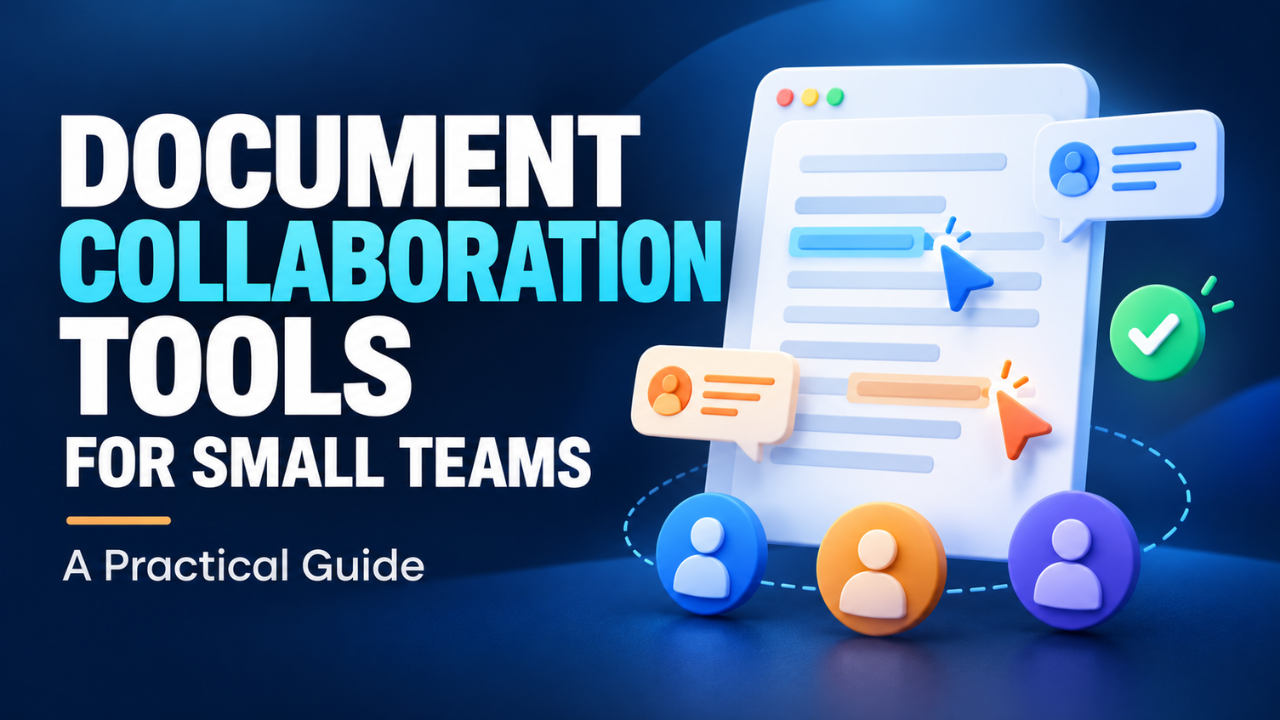
Document Collaboration Tools for Small Teams: A Practical Guide
Someone edits the proposal. Someone else reviews an older copy. The client sends feedback by email, and suddenly three people are fixing three different documents.
That’s a lot of wasted effort for a team that already has enough to do.
Document collaboration tools for small teams help keep drafts, feedback, and decisions in one place. But choosing one isn’t simply about finding an editor with a sharing button. You need something people can use comfortably, clients can access, and your team can keep organized without constant reminders.
The right choice depends on what you write, who reviews it, and where work tends to get stuck.
Table of Contents
- Why Small Teams Lose Time on Documents
- The Features That Actually Matter
- Google Docs for Everyday Shared Writing
- Microsoft Word for Teams Already Using Office
- Notion for Documents That Live Alongside Projects
- Dropbox Paper for Creative Planning
- How to Choose Without Overbuying
- A Simple Workflow That Keeps Reviews Moving
- Test One Real Project Before You Commit
Why Small Teams Lose Time on Documents
Small teams usually don’t have someone managing every file and following up on every review. A business owner drafts a proposal between calls. A designer adds notes later. An account manager sends it out.
The trouble starts when nobody knows which copy is current.
Email attachments make this especially easy. Once a document gets downloaded, edited, and forwarded, the original is only one version among several. Important feedback can end up buried in a message that half the team never saw.
A shared document gives everyone a common place to work. Instead of sending another attachment, you send the same link.
That helps, but software alone won’t settle every question. Someone still needs to own the document, decide which edits to accept, and confirm when it’s ready. Without those decisions, you’ve simply moved the confusion into a browser.
The Features That Actually Matter
Live editing gets most of the attention. Watching a teammate type is useful, especially when you’re working through a deadline together. Still, small teams often need good review features just as much.
Comments should sit beside the sentence or section being discussed. “Please update the delivery date” means more when it’s attached to the actual date.
Suggested edits or tracked changes are valuable when reviewers should propose wording without immediately replacing the original. Version history matters too. If somebody removes a section by mistake, recovery should be straightforward.
Sharing deserves a careful look. Can a freelancer comment without getting access to unrelated files? Can a client open the document without a confusing setup? Test this from the recipient’s side.
Finally, check exports. If your finished work goes out as a Word file or PDF, export a realistic sample. Tables, page breaks, and images need to survive the handoff.
Google Docs for Everyday Shared Writing
Google Docs is a sensible starting point for teams producing proposals, blog drafts, meeting notes, and everyday business documents.
It supports shared editing, comments, access controls, and the ability to review or restore earlier versions. Those features cover much of the daily work involved in getting a draft reviewed and finished. Google’s document collaboration overview explains these capabilities.
Picture a small marketing team preparing a client article. The writer develops the draft, the account manager flags a missing point, and the client comments on a product description. Everyone works from the same document.
The practical appeal is how little ceremony this requires.
I’d consider Docs first when writing and feedback are the main jobs. During your trial, though, check any documents with strict layout requirements. A simple article draft and a carefully formatted report place different demands on an editor.
Also agree on where documents belong. A shared link is helpful today; a sensible folder structure helps someone find it three months later.
Microsoft Word for Teams Already Using Office
If your team works in Word and regularly exchanges Word files with clients, improving that setup may be easier than introducing another platform.
Microsoft supports real-time co-authoring for compatible documents stored in OneDrive or SharePoint. Contributors need appropriate access, and the experience depends on the Word version and setup. Microsoft’s co-authoring guidance covers the requirements.
The important change is where the working document lives.
A Word file attached to an email still creates separate copies. A shared cloud document gives colleagues a common file to edit.
Consider a consulting team preparing a detailed client report. If everyone already uses Word templates and the client expects a DOCX file, staying in that environment can reduce unnecessary conversion work.
Before adopting the workflow, test it with the actual versions your colleagues use. Open the same sample file, make edits, and check what each person sees.
Familiar software only saves time when everyone understands the shared process.
Notion for Documents That Live Alongside Projects
Some documents aren’t meant to be finished and sent away. They keep growing.
An onboarding guide, project brief, or internal handbook needs regular updates and a clear place within the team’s wider work. That’s where I’d consider Notion.
Notion allows people to work together on shared pages and databases, including editing the same content at the same time. Notion’s workspace collaboration guide describes this shared editing setup.
For a small product team, a project page could hold the brief, meeting notes, and links to supporting material. The value comes from keeping useful context close together.
There’s a catch: somebody needs to maintain the structure.
Let’s be honest, building a beautiful workspace can become a project of its own. Start with a few clearly named pages. Add more structure when a real need appears.
If most of your work ends as a polished document for external delivery, test that handoff carefully before making Notion your main writing environment.
Dropbox Paper for Creative Planning
Dropbox Paper is worth considering when documents are mainly working spaces for ideas and discussion.
It supports mentions, comments on text and images, and assigned to-dos. Those features let a team keep feedback and follow-up actions beside the material under discussion. Dropbox’s Paper collaboration guide explains how they work.
Imagine a small design studio planning a website launch. The team needs somewhere to collect direction, discuss visuals, and note who should provide the missing copy.
That’s a different job from producing a formal report.
I’d trial Paper for creative briefs, planning notes, and early project discussions. Use a real brief during the trial and check whether the team can comfortably move from discussion to completed work.
The useful question is whether the document helps people act on an idea.
How to Choose Without Overbuying
Start with the tools your team already pays for. If an existing subscription can handle the work, a new platform needs to solve a clear problem.
These are useful starting points, based on the type of work involved:
| Your main need | Tool to trial first |
|---|---|
| Shared drafts and straightforward feedback | Google Docs |
| Word-based reports and client deliverables | Microsoft Word |
| Internal guides and ongoing project knowledge | Notion |
| Creative briefs and planning discussions | Dropbox Paper |
Treat this as a shortlist, not a universal ranking.
Next, count everyone who needs access, including regular contractors. Check current plan details for guest access, storage, version history, and administrative controls. Don’t assume a free plan covers the same needs as a business setup.
Time belongs in the cost calculation too. A cheaper subscription may lose its appeal if someone spends every Friday fixing exports or explaining permissions.
You may need a document editor and a separate home for internal knowledge. That’s reasonable. Just give each tool a clear purpose so people know where work belongs.
A Simple Workflow That Keeps Reviews Moving
Even a three-person team benefits from a few shared rules.
Give every important document one owner. That person gathers feedback, resolves conflicting suggestions, and marks the document ready. They don’t have to write every word.
Keep one working link throughout the review. If a client sends feedback by email, bring the relevant points into the document so the team can see them.
Be specific when requesting a review. “Please check the scope and delivery dates by Thursday” gives someone a useful task. “Thoughts?” often produces scattered comments and no clear finish.
Use a visible status such as Draft, In Review, or Approved. Put it somewhere people will notice.
Agree on what happens after approval, too. Save the delivered version, record the approval, and make later revisions deliberately. Otherwise, somebody may quietly change wording after the client has already signed off.
These habits take minutes to establish and remove plenty of avoidable back-and-forth.
Test One Real Project Before You Commit
Choose one ordinary project for a short trial. Include someone who writes, someone who reviews, and an external collaborator if that reflects your normal work.
Ask them to complete the whole process: open the document, edit it, leave feedback, find it again, and export the finished version.
Pay attention to small frustrations. Repeated access requests, missed comments, and messy downloads are useful evidence. So is a teammate saying, “That was easy.”
The best document collaboration tool for a small team earns its place through everyday use. Choose the one that makes the next draft easier to find, the next review clearer, and the final handoff less work.